
Why bulk import of Sales Invoices matters
If your business writes more than a couple of sales invoices per month, entering them manually in IRIS is slow. FBR provides an Excel template to bulk-upload Sales Tax invoice data into IRIS which includes a built-in “Validate” function for catching errors offline before they are even uploaded in IRIS.
Step 1: Download the Excel Template
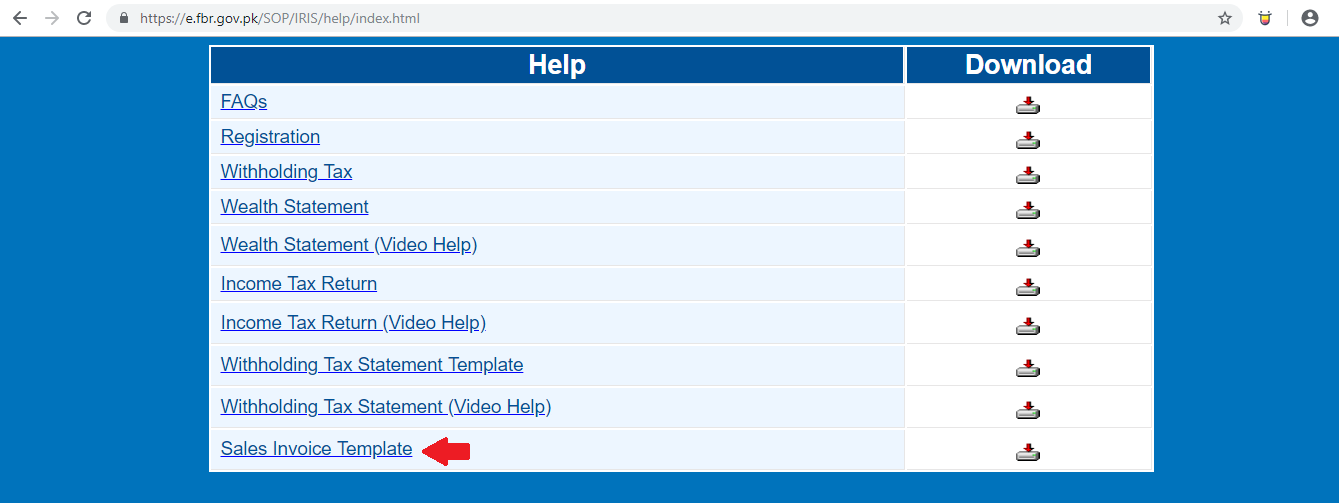
The Sales Invoice Template is available in FBR’s IRIS Help section and can be downloaded and filled out according to the template’s structure.
Step 2: Validate Offline First
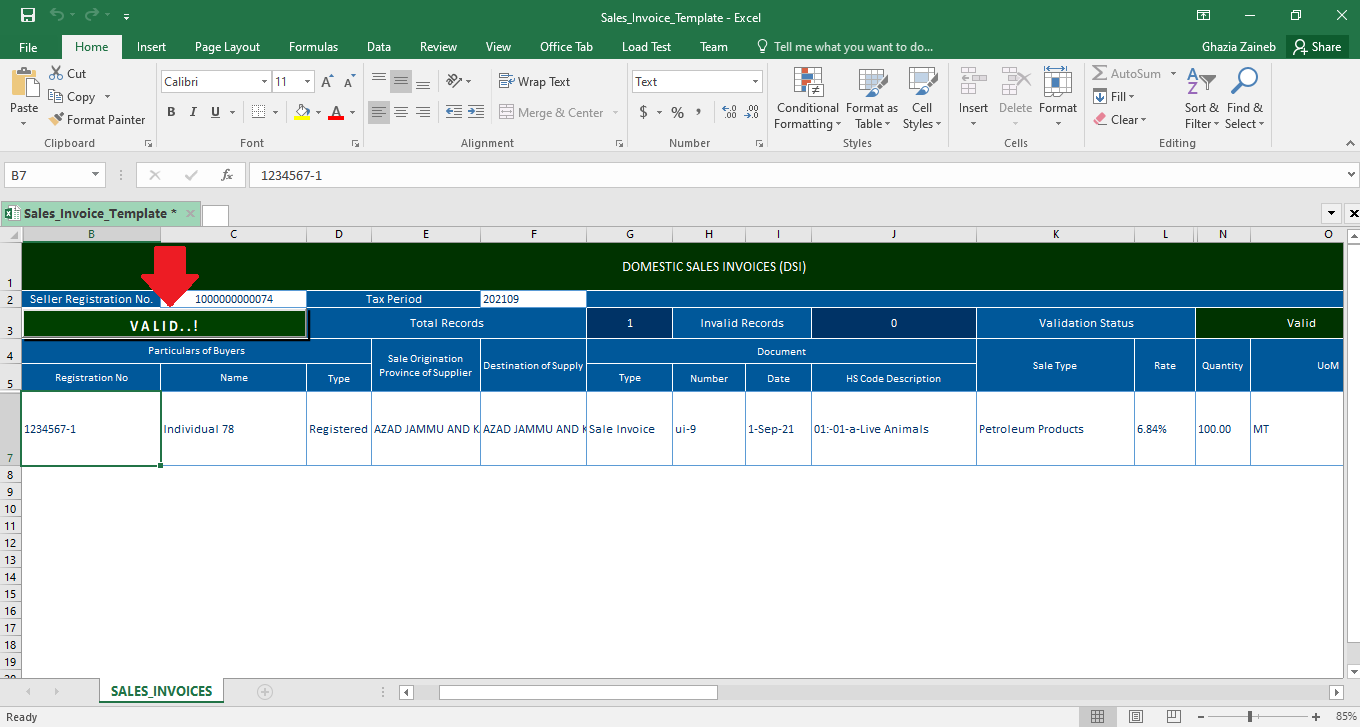
Before uploading anything to IRIS, you can perform a “Validate” check using a built-in “Validate” button in the Excel template to catch any errors that may appear due to incorrect formatting or structure before they are uploaded into IRIS.
Step 3: Open Invoice Management in IRIS
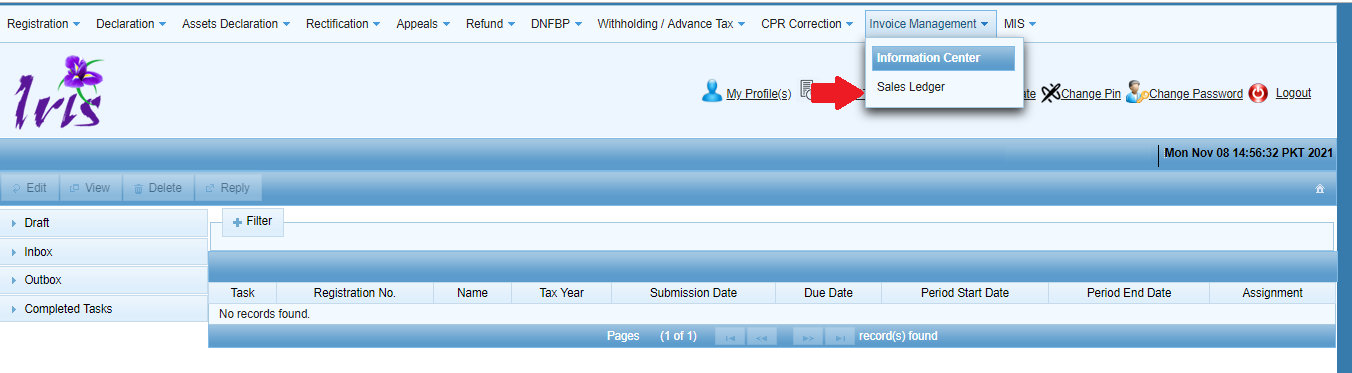
Log into IRIS and navigate to “Invoice Management” in the mega menu and select “Sales Ledger” under Sales Tax Invoice Management.
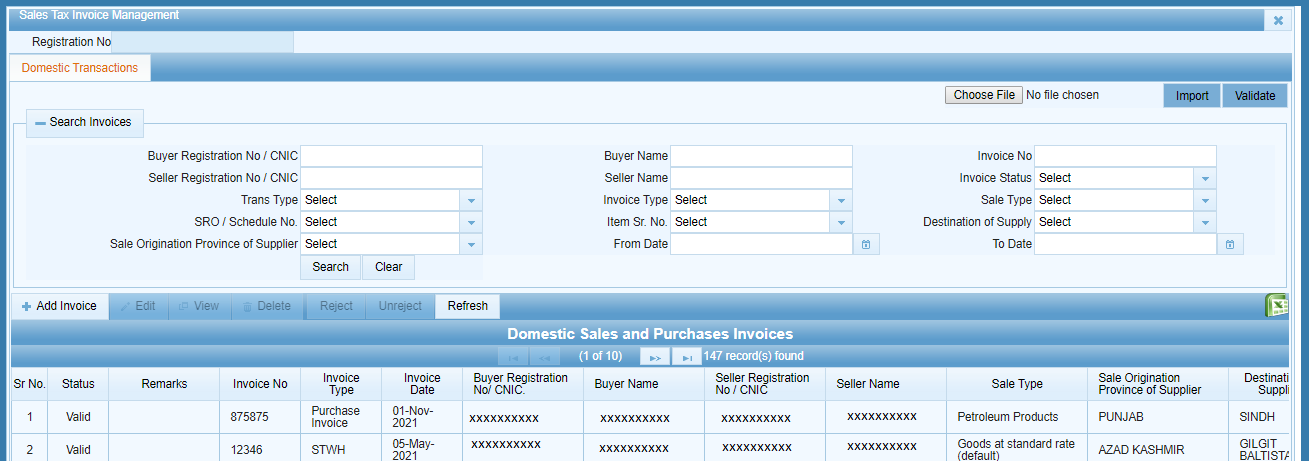
Step 4: Upload Your File
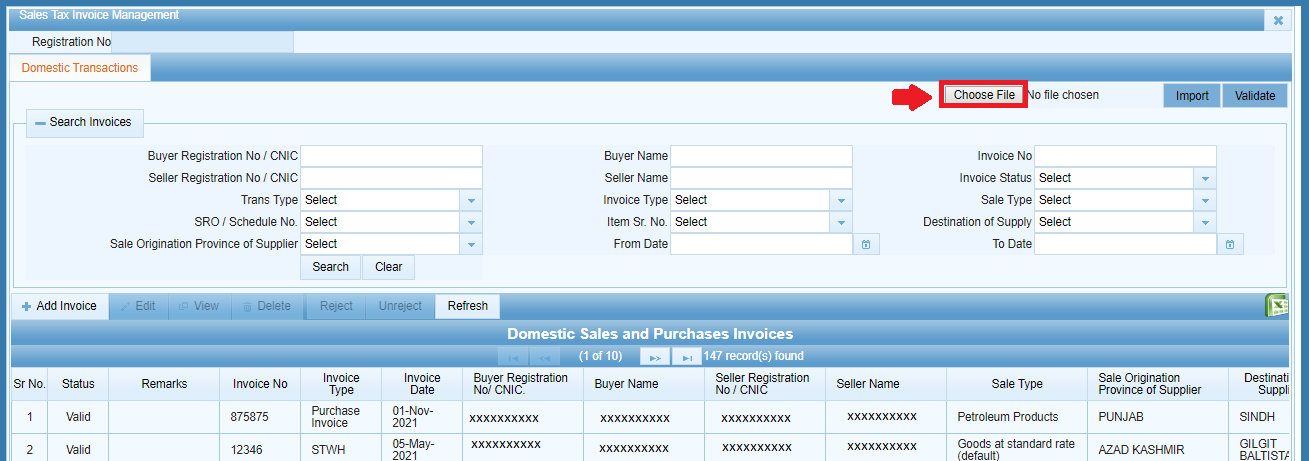
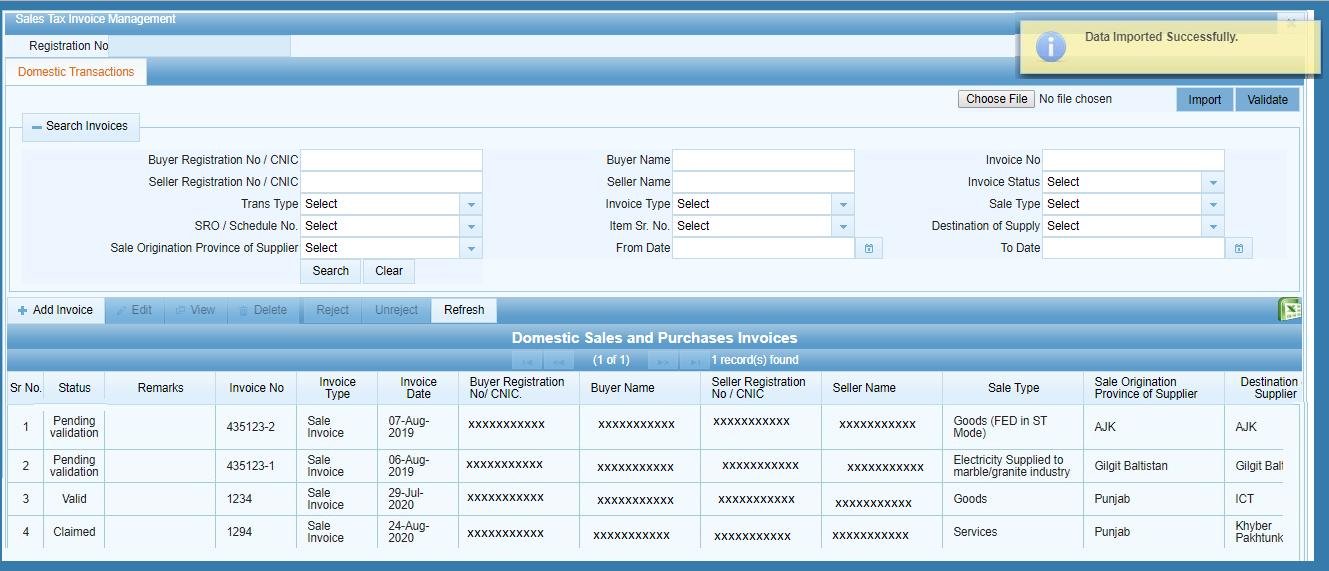
Click “Choose File” in the top area of the screen and locate your completed Excel file. Click “Import” to bring in all of the records in your file. Each record from the file you uploaded appears in your sales ledger with a status of “Pending Verification.”
Step 5: Run Online Validation
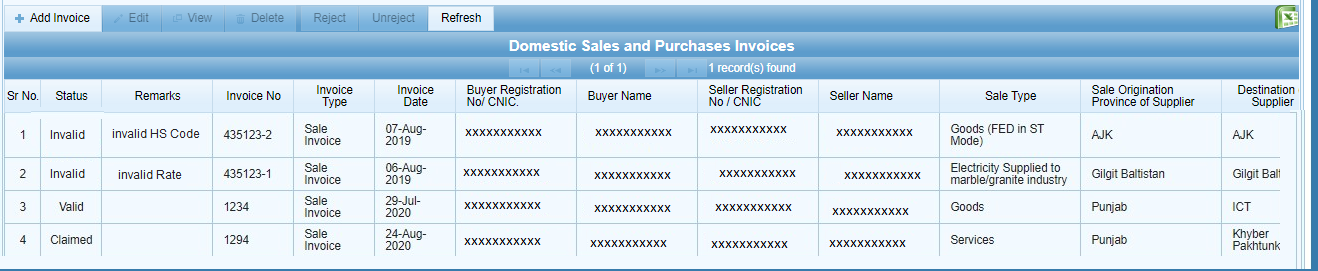
Click “Validate” to have IRIS online-validate each of the records you imported. Each record appears as Valid or Invalid. If a record appears invalid, the validation error appears in the Remarks field next to the invalid record.
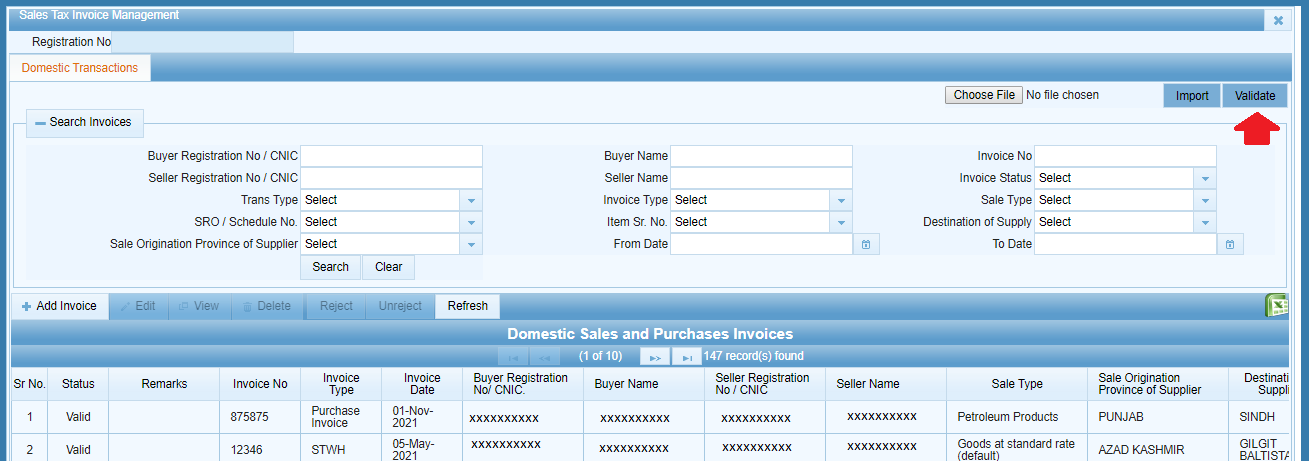
Step 6: Fix Invalid Records Individually
This is the main benefit over the old e.fbr process: previously, you had to re-upload the entire file once it was invalid. In IRIS, you can select the invalid records individually and edit based on the Remarks displayed next to each invalid record and its status changes to Valid – there is no need to re-upload the entire records that were okay.
Common Mistakes We See With Bulk Imports
- Skipping the offline Validate step and uploading directly to IRIS – this means having to find out formatting errors later in a slower online-validation cycle to discover a problem.
- Re-uploading the entire file after one invalid record was a pain in the old e.fbr process, but in IRIS you can choose the invalid record and edit directly in the system instead of re-uploading the entire file.
- Not looking at the Remarks field closely before editing an invalid record – the error the record is invalid for is displayed right in the Remarks field. Guessing what the error is more often than not results in a second failed attempt at correction.
FAQ
Do I have to re-upload my whole file if some invoices failed validation?
No – IRIS will mark records as valid or invalid individually, and can be corrected directly without having to re-upload the entire file.
What does “Pending Verification” mean after import?
It means the records have been imported but have not yet been validated by the online IRIS system. Click “Validate” to check the actual status of the records.
Can I validate my data before uploading it to IRIS?
Yes – The Excel template itself is equipped with a “Validate” button to help find errors caused by formatting or structure issues in Excel before you upload anything into IRIS.