

Where Purchase Invoices are Managed in IRIS
IRIS’s Invoice Management module allows you to record and maintain purchase invoice information throughout the financial year, for both STWH withholding and non-withholding purchase invoices, either from registered or unregistered sellers. You don’t need to have an open Sales Tax return in order to add a purchase invoice — a major advantage over the previous e.fbr portal, in which you needed to have an open Sales Tax return to record purchase invoices under Annex-A.
To add purchase invoice information to your Sales Tax return, follow these steps:
1. Access “Invoice Management”
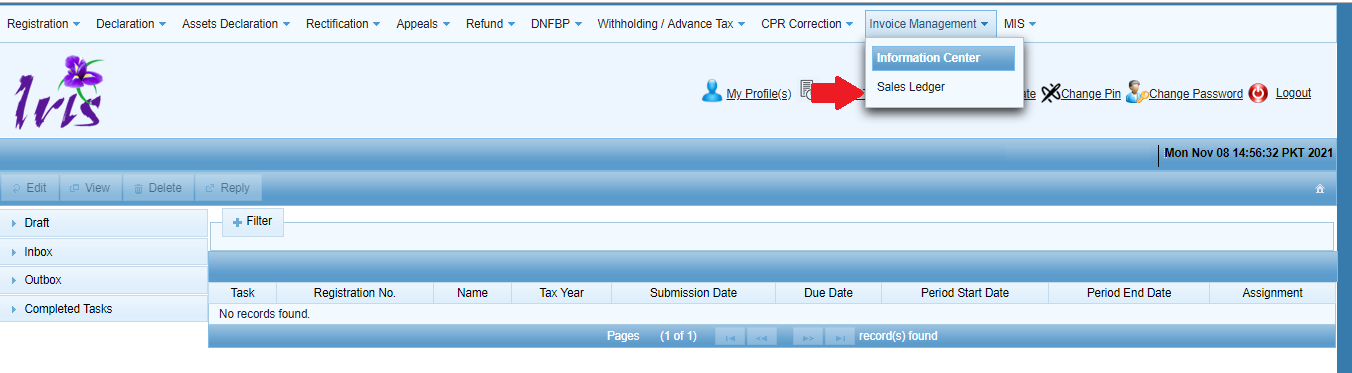
In your IRIS dashboard, navigate to the “Invoice Management” tab under the mega menu, and select “Sales Ledger”. This displays the screen for searching existing invoice records according to various filters.
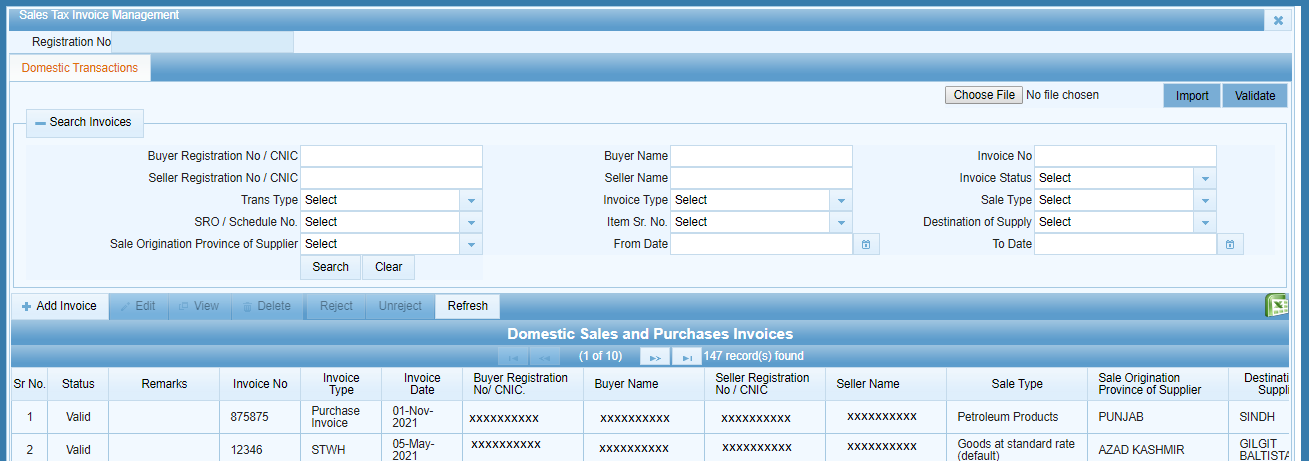
2. Add a new purchase invoice
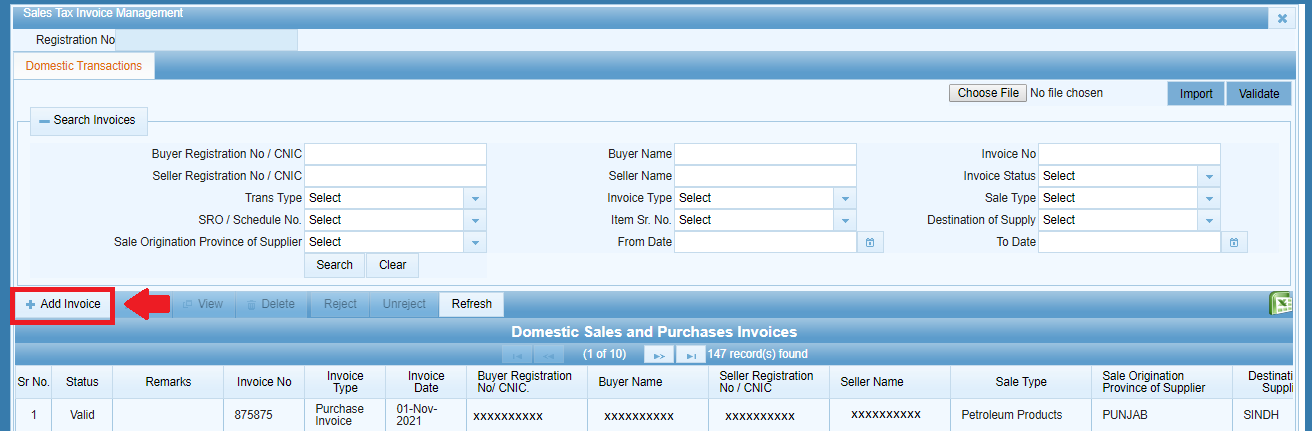
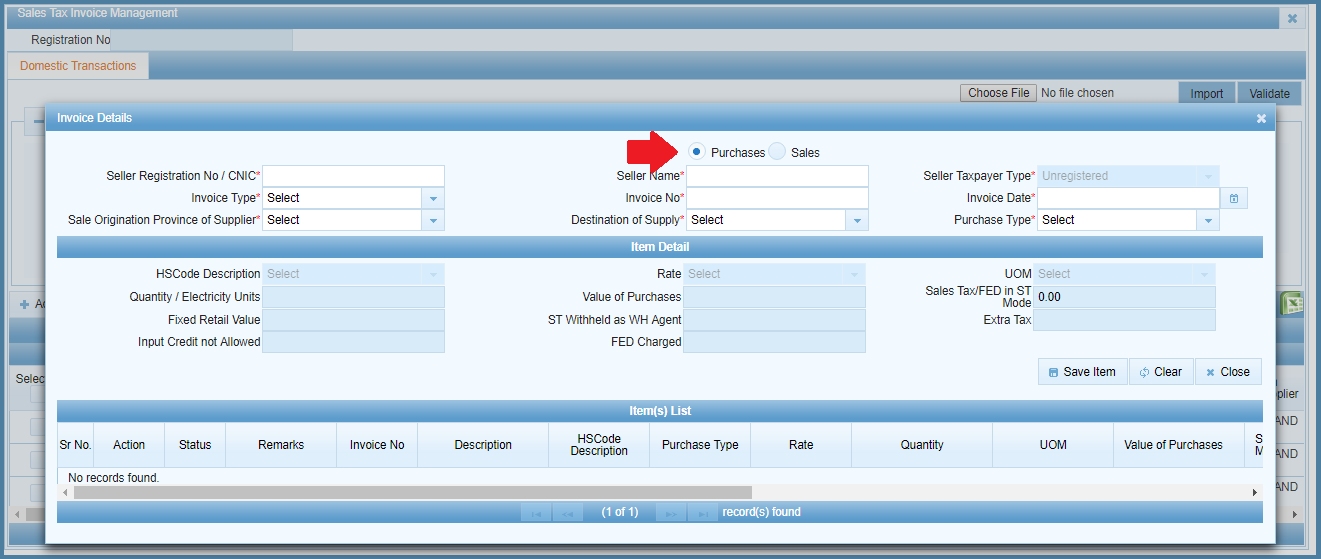
Under the domestic section, click on “Add Invoice” — in the subsequent window, ensure that the “Purchases” radio button is selected:
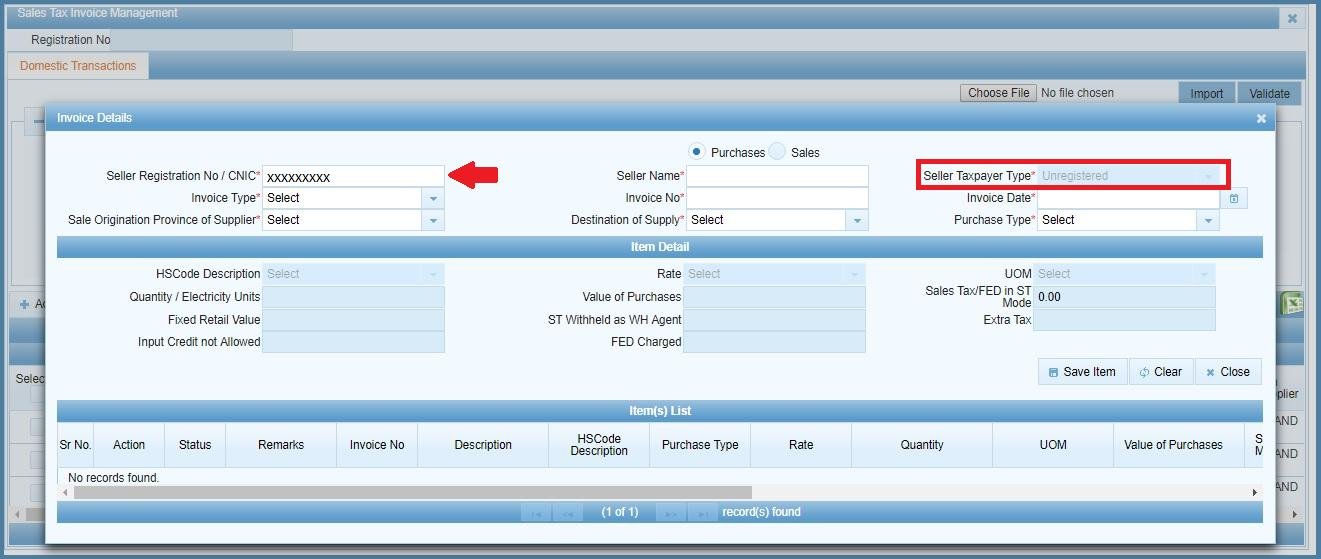
3. Add the seller’s CNIC or registration number
You can add either one — IRIS will cross-check the CNIC against NADRA and FBR’s databases to determine whether the seller is registered or not with the tax authorities. For example, if the CNIC passes the NADRA verification but not the FBR one, the seller is categorised as unregistered for the purposes of the Sales Tax return. (Note: in order to add a purchase invoice under the category of Cotton Ginner, the seller must be registered for Sales Tax.)
4. Choose the invoice type
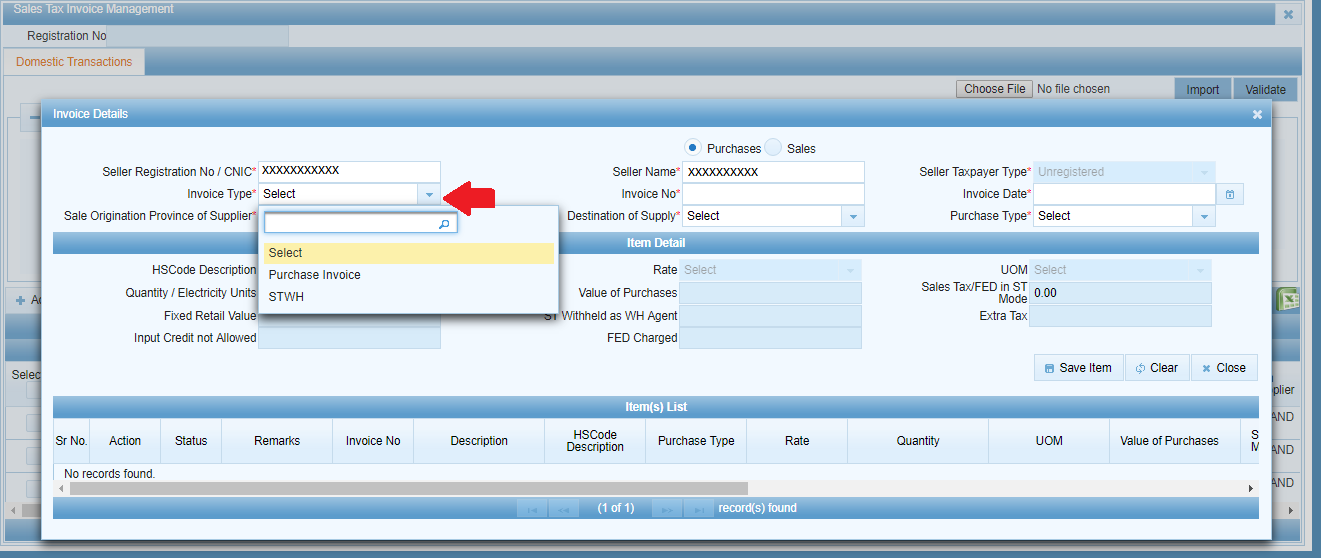
Select either “Purchase Invoice” or “STWH” in the dropdown, depending on what kind of invoice you want to record:
5. Enter invoice details and item(s)
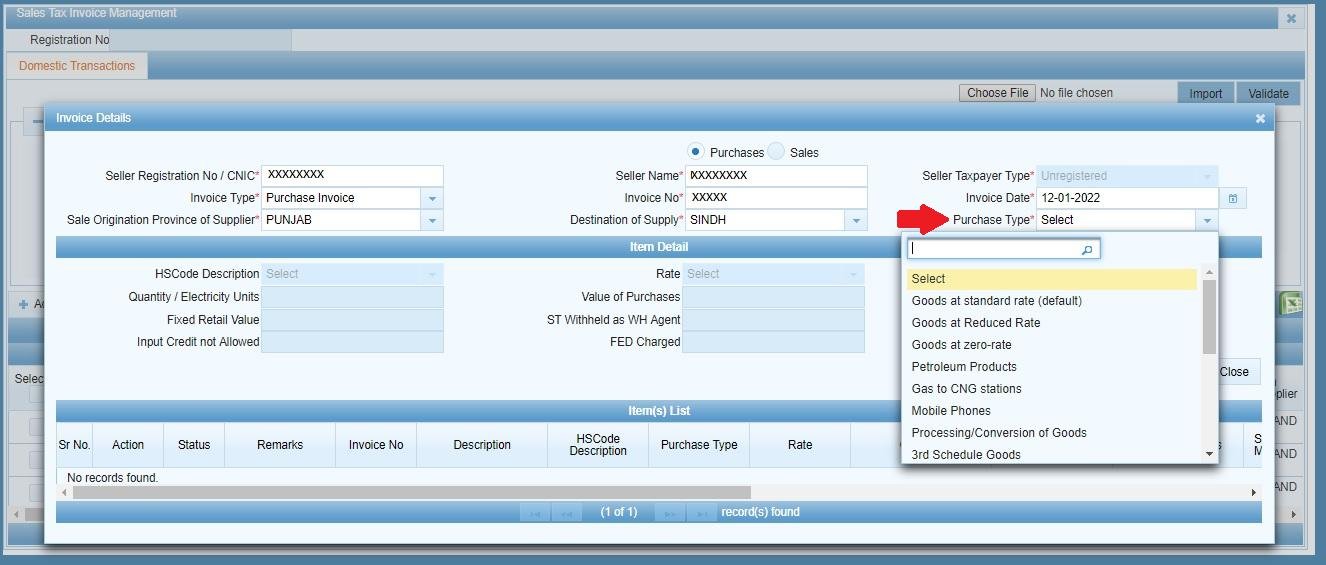
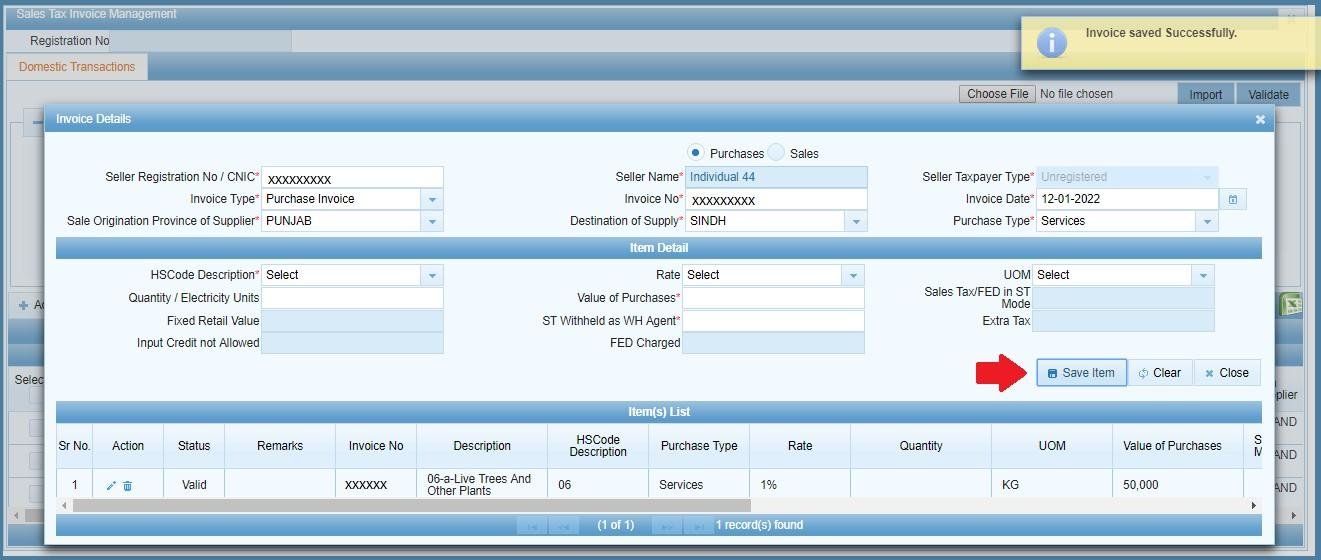
Fill in the necessary fields for the invoice, then choose the relevant purchase type from the dropdown. IRIS will then enable the item-specific fields corresponding to whichever type of purchase you selected — fill those in and click “Save Item”. The saved item will appear under the “Item(s) List” section, which you can use to edit or delete existing items. You can save multiple items under the same invoice — the fields for the invoice itself will remain populated until you click “Clear” in order to begin working on a new invoice.
6. Close and save
Click “Close” in order to return to the domestic invoice management screen — your saved invoice will appear in the list, either alongside other invoices or according to whatever filters you’ve applied.
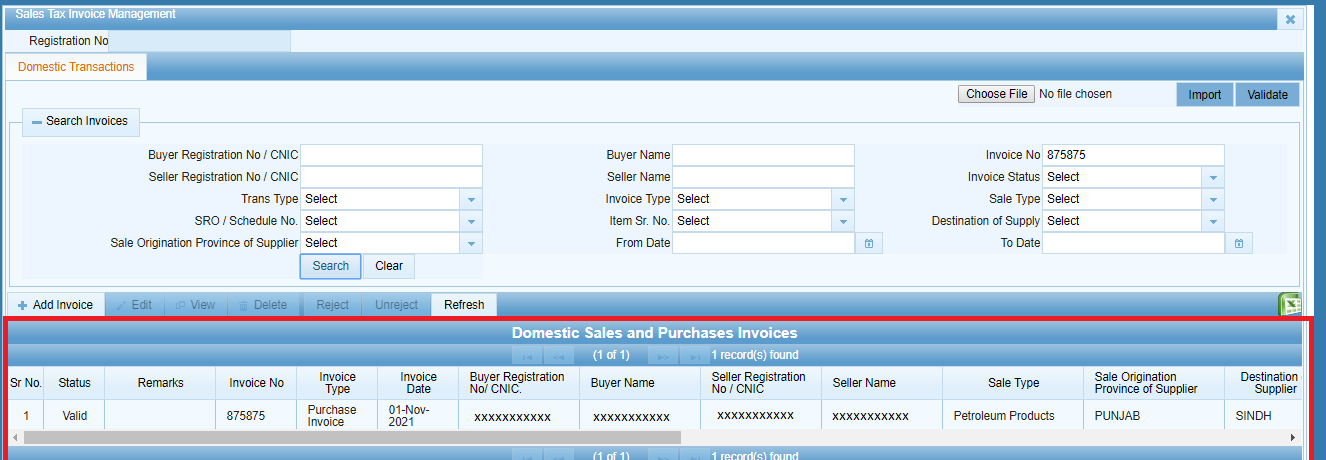
7. Claims the invoice in your Sales Tax return
All the purchase invoices and STWH withholding invoices you’ve recorded using the Invoice Management module will appear under Annex-A (Purchases) whenever you open a Sales Tax return for the relevant period. This includes purchase invoices recorded by third parties, provided they are logged in the same FBR portal. If you’ve opened a Sales Tax return before adding a particular invoice, simply click the “Load Invoices” button inside Annex-A in order to claim it.
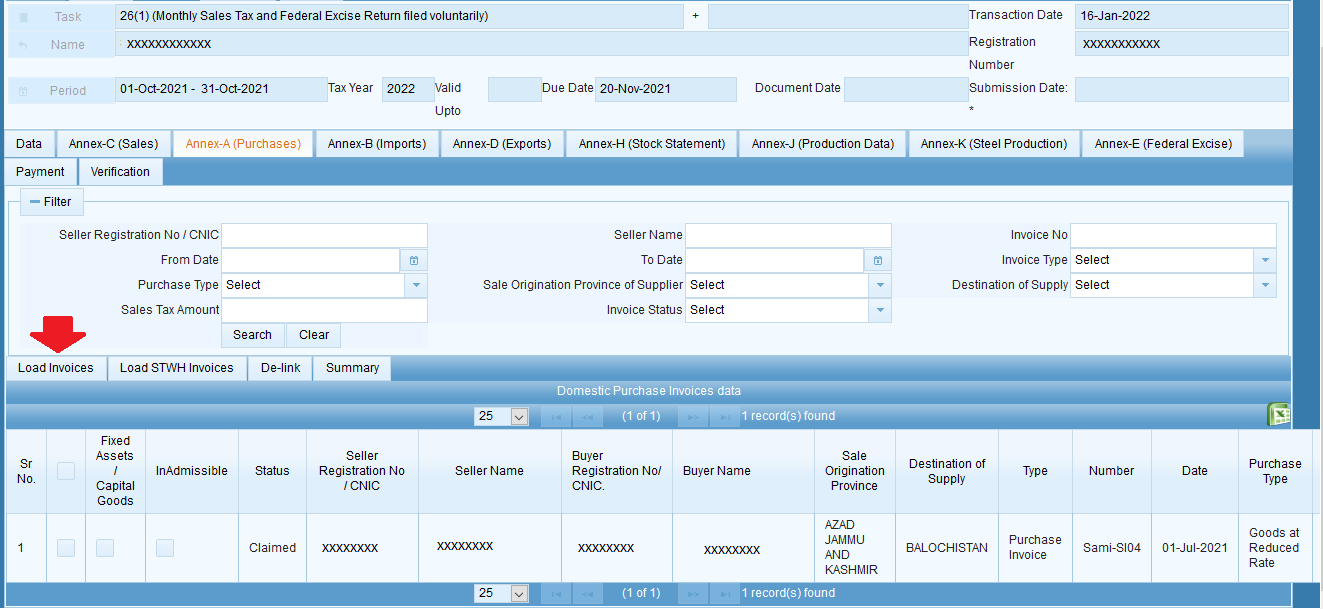
Common mistakes with purchase invoices in IRIS
- Trying to add a purchase invoice once you’ve already opened a Sales Tax return for the month. In IRIS, you can add a purchase invoice at any point during the year — it will appear under Annex-A for whichever return you open next, whether it’s in the same month or not.
- Selecting the wrong option in the “Purchase Type” dropdown, which might cause IRIS to populate incorrect fields.
- Failing to verify the registration status of the seller, according to NADRA and the FBR. If you add a seller’s CNIC that doesn’t appear in the FBR’s database, double-check it — it may be correct but simply not registered with the tax authorities.
FAQ
Do I need to have an open Sales Tax return in order to add a purchase invoice?
No — you can add purchase invoices at any point during the year via the Invoice Management module. They will appear under Annex-A for whichever Sales Tax return you open next.
What’s the difference between a Purchase Invoice and an STWH invoice?
A standard Purchase Invoice is used to record tax paid on a purchase made from either a registered or unregistered seller. An STWH invoice, in contrast, is used to record a withholding invoice for a seller who has withheld tax at source.
If the seller’s CNIC doesn’t appear in the FBR’s database, what does that mean?
If NADRA verifies the CNIC but it doesn’t exist in FBR’s registration records, IRIS treats the seller as unregistered for that invoice.