
Where Salary Income Goes in the New IRIS Return
If you’re a salaried employee preparing your tax return for tax year 2026, the details of your salary appear in the Employment section of your return. This is one of the modules you must select at the very start of the Return Prerequisites screen. If you failed to tick “Employment” as an income source there, you need to use the “Add Income Sources” button again and add it before you can proceed to this section.
For the full process of the return from logging in to submitting, see our step-by-step to filing your income tax return online.
Step 1: Add Your Employer Details
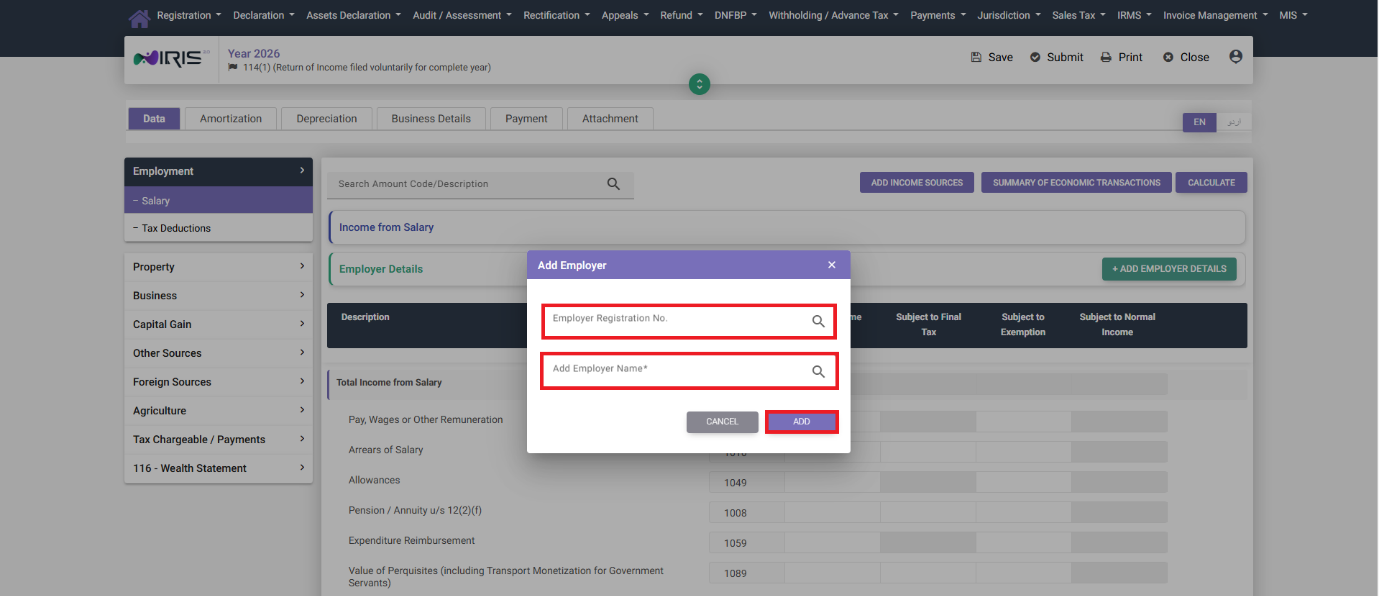
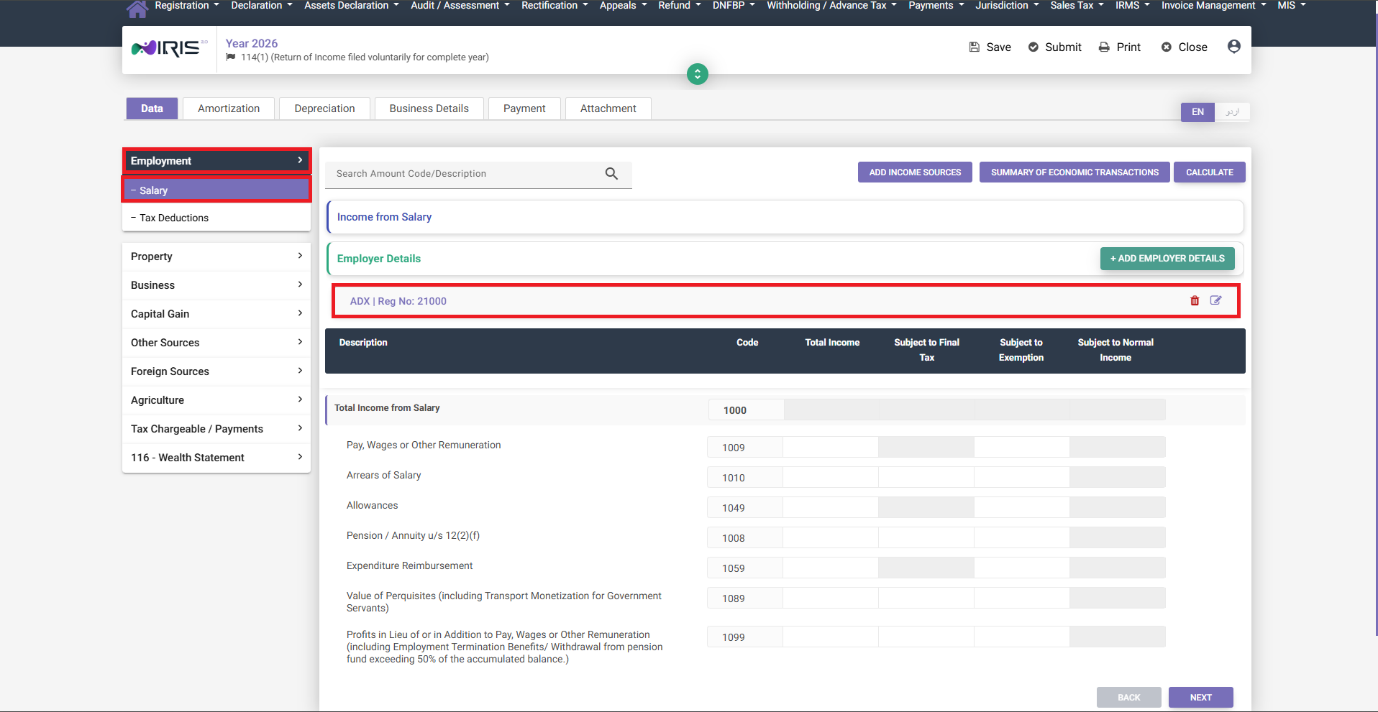
In the Employment section, you’ll see an option called Salary and a button “+ Add Employer Details.” When you click this, a pop-up box appears asking you to enter:
- Your employer’s registration number (NTN)
- Your employer’s name
Click Add and the employer will be listed on screen. You can edit or remove it later using the icons next to the record. If you had more than one employer in the tax year, add each of them here.
Step 2: Enter Your Salary Figures
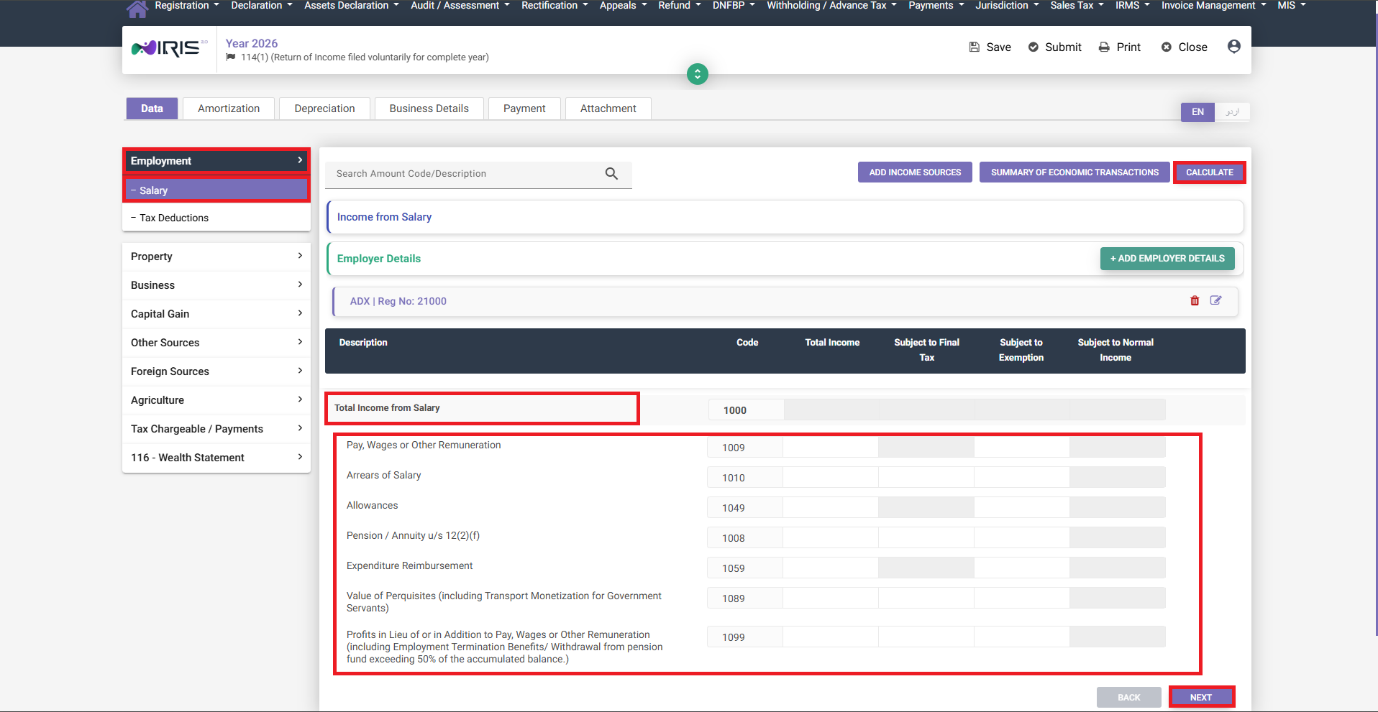
Having added your employer, you can now enter the applicable amounts under Total Income from Salary. Most salaried filers will only need the fields on a total income basis, but the return also has specific fields for less common circumstances:
- Arrears of Salary – if you received any arrears relating to a previous tax year and wish to claim the lower tax rate under section 12(7), you’ll need to enter the amount separately in the “Subject to Final Tax” column so the system applies the correct rate on the tax deduction screen.
- Pension / Annuity (section 12(2)(f)) – you’ll enter the total of any pension / annuity here. If this exceeds Rs. 10 million for the year, it’s liable to a final tax of 5%, so that should be in “Subject to Final Tax.”
- Value of Perquisites, including Transport Monetization – relevant mainly to government servants. You’ll enter the total of your perquisite under “Total Income,” and the amount of transport monetization (if applicable) under “Subject to Final Tax.”
- Profits in Lieu of Pay / Termination Benefits – if these relate to a prior tax year and you wish to claim the lower rate under section 12(6), you’ll need to enter the amount in “Subject to Final Tax” as well.
Click Calculate after entering your figures, then Next to continue.
Step 3: Confirm Tax Already Deducted
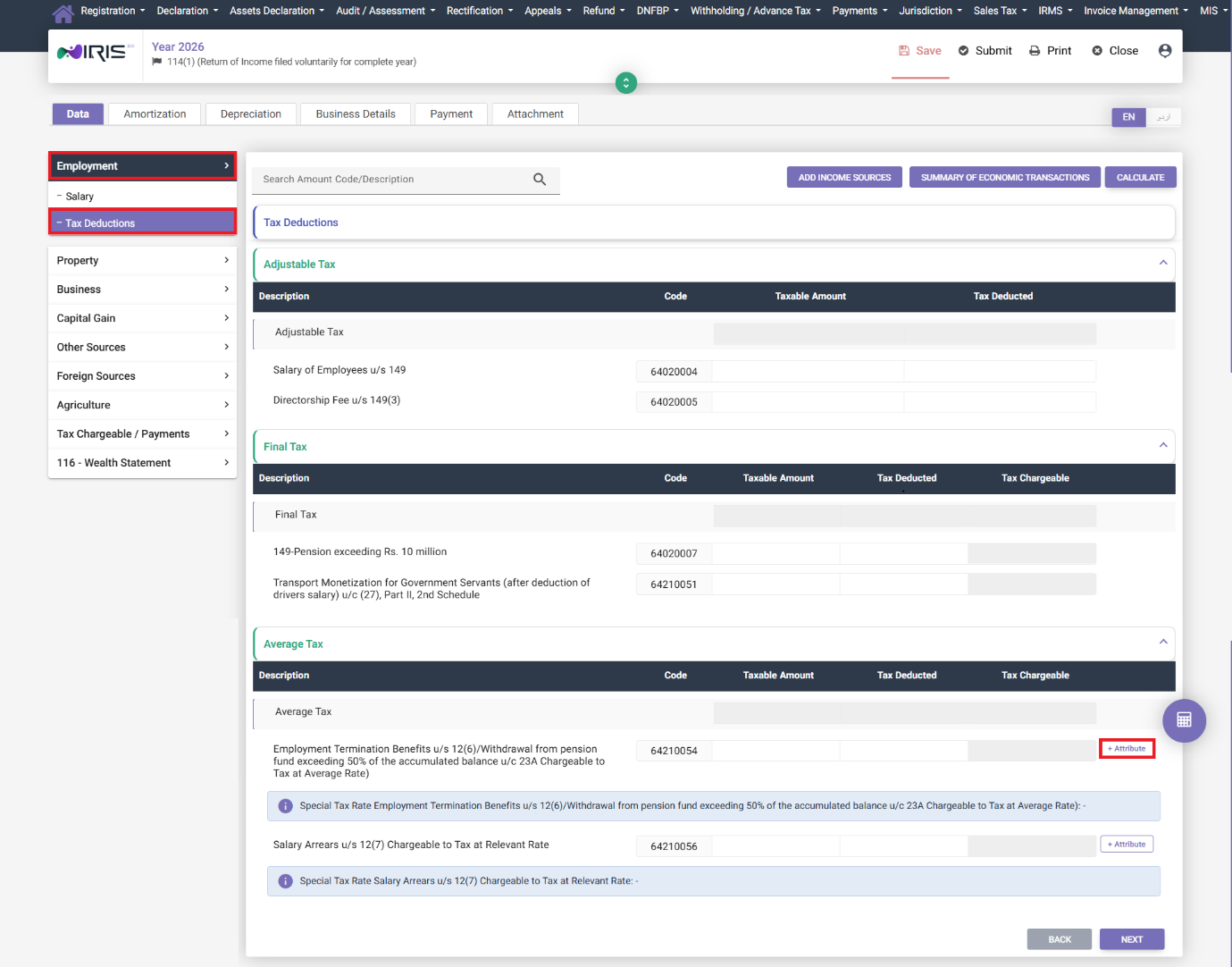
The return will automatically carry your salary figures into the Tax Deduction tab for Employment. Most of this is pre-populated based on the information you entered in step 2, but you still need to add the average tax rate your employer used:
- Click “+ Attribute”
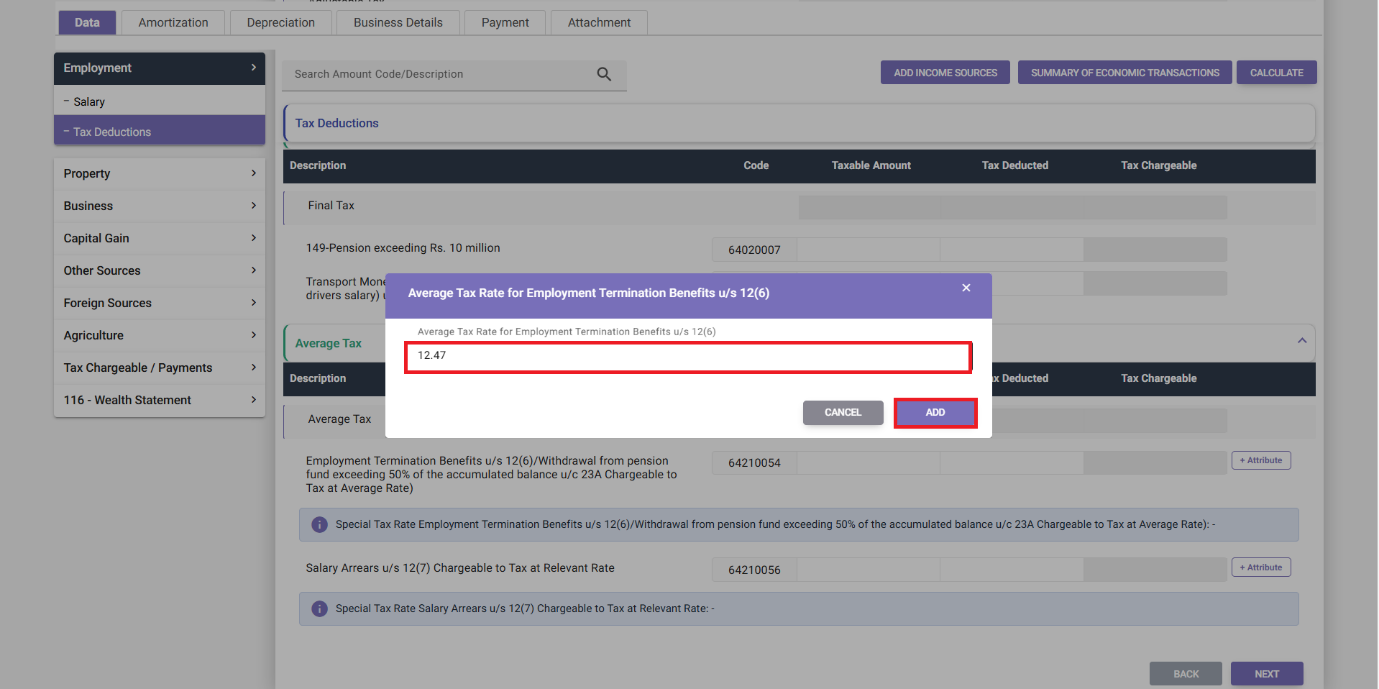
- Enter the Average Tax Rate your employer used (up to two decimal places – this is on your salary certificate or payslip)
- Click Add
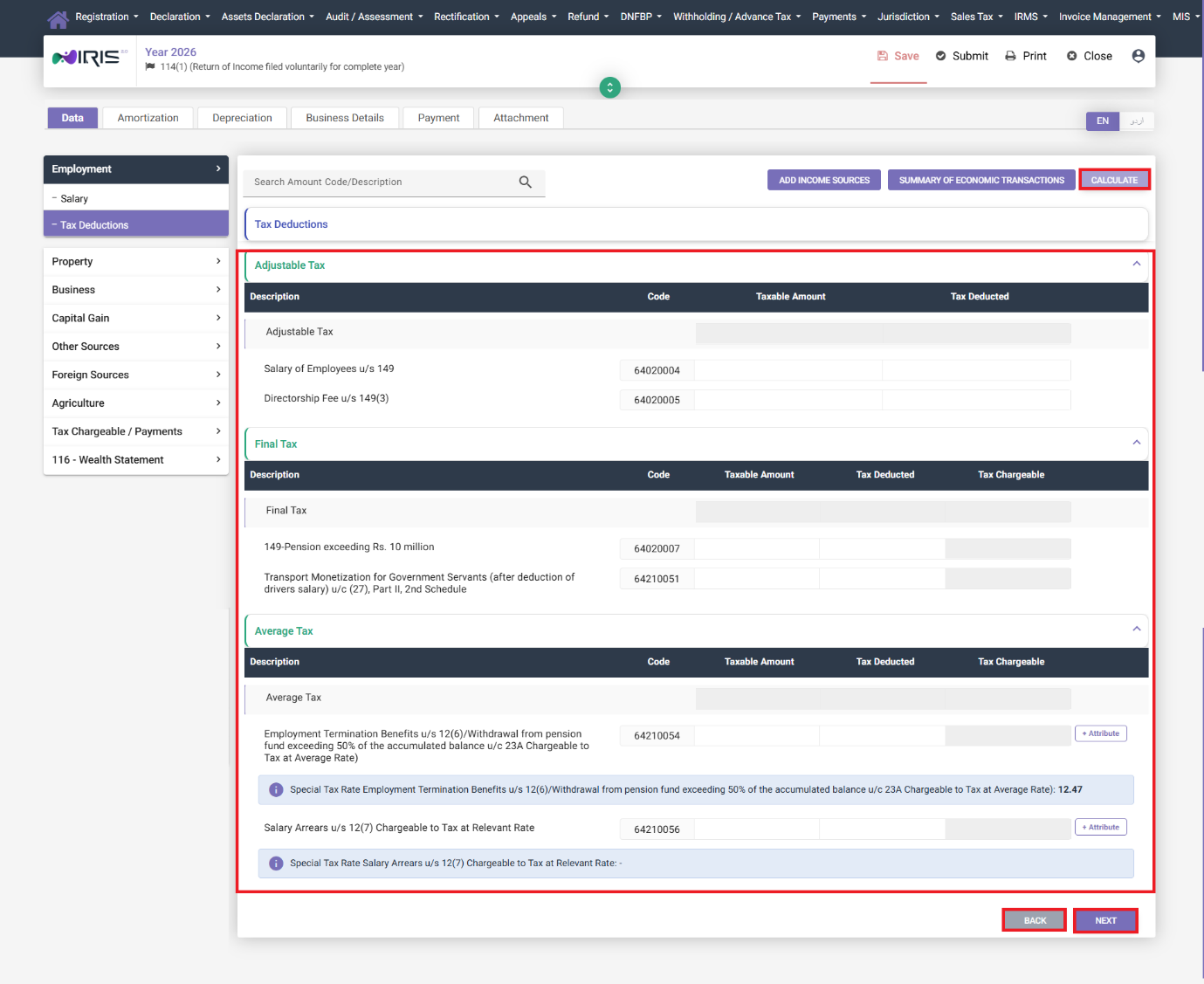
Once the rate has been added, check the fields that have been populated, click Calculate to confirm the figures, then click Next to continue to your next income module (or Back if you need to review what you’ve entered).
Common Mistakes We See With Salary Income
- Only adding one employer when there were two. If you changed jobs mid-year, both employers need to be separately added – merging the figures into one employer record will throw out the tax-deducted reconciliation.
- Putting arrears or termination benefits in the regular Total Income field, rather than splitting them into “Subject to Final Tax” – this means you lose the lower-rate treatment you’re due under sections 12(6) and 12(7).
- Skipping the Average Tax Rate attribute. Without it, the Tax Deduction tab won’t reconcile properly against the tax your employer withheld, which may result in a balance payable being requested.
- Not clicking Calculate after each change. The return doesn’t always refresh totals automatically – if the numbers look wrong further down the return, go back and re-click Calculate on the Salary tab.
FAQ
Do I need to report salary from a previous employer if I’ve since left that job?
Yes. Any salary paid to you during the tax year counts, regardless of whether you’re still employed there. Add that employer’s details the same way as your current one.
What if my employer didn’t deduct tax at source?
You still report the full salary figure. If little or no tax was withheld, you expect a balance payable once the return has calculated your total liability. This isn’t unusual for smaller employers who under-withhold.
Where do I find my employer’s registration number?
It’s on your salary certificate or payslip, or you can ask your employer’s HR/finance department directly. It’s their NTN, not yours.
Continue Your Income Tax Filing Guide
If too much tax was deducted from your salary, our income tax refund service can help you claim it back.
See the Tax Year 2027 (2026-27) salaried tax slab rates in our free tax calculator.