
If you’re a withholding agent — an employer, company, or anyone else required to deduct tax at source and report it to FBR — you file that report through IRIS as a “165(1) Statement of withholding taxes filed voluntarily.” This is a separate filing to your own income tax return, with its own process.
See the Tax Year 2027 (2026-27) withholding tax (Sec 153) rates in our free tax calculator.
For the full walk-through of your return from a filer’s perspective, see our step-by-step guide to filing your income tax return online.
Step 1: Open the Withholding Statement
Log into IRIS and from the Declaration menu select Withholding/Advance Tax > Forms, and select “165(1) (Statement of withholding taxes filed voluntarily).” A pop-up will ask for the Tax Period you’re reporting, so you can search and select that, and hit Save. This will create a draft in your Withholding/Advance Tax inbox – that you can return to anytime by clicking the Edit button.
Step 2: Add each Withholding Entry
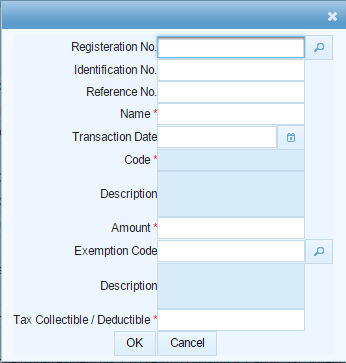
Inside this draft, go to the Data tab and add each person or transaction you withheld tax against as an entry. For each, you’ll need to provide:
- The payee’s Registration No. (their NTN/CNIC) – or their Identification No. if they don’t have a Registration No.
- An optional Reference No. and the payee’s Name
- The Transaction Date
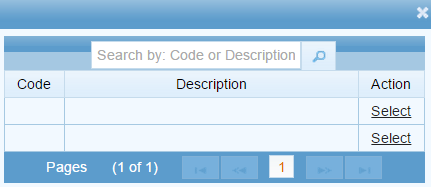
- The applicable withholding Code (IRIS displays the matching Description automatically once you select a code)
- The Amount and, if relevant, an Exemption Code (searchable)
- The Tax Collectible/Deductible
Click OK to save each entry, and repeat for every payee under that tax period.
Step 3: Import entries in bulk (optional)
Rather than adding each payee individually (which can be impractical if there are many), use “Choose File” to import the Withholding Tax Statement Excel template, and click Import – IRIS will load up every row of that sheet as a withholding entry in one go, which is worth doing if there are more than a few transactions to report.
Step 4: Validate your entries
Click Validate against each entry (or the batch, if imported), and IRIS will check each Registration No. and return a Validation Status – Valid, Invalid Registration No., Invalid Code, Invalid Name or Invalid Transaction Date. Fix any rows that come up invalid before proceeding – an invalid entry will not calculate correctly and hold up submission later.
Step 5: Calculate tax chargeable
Switch to the Tax Chargeable/Payments tab and click Calculate. This tab breaks your entries down by Adjustable Tax and other categories, showing Receipts/Value against Tax Collected/Deducted/Paid and Tax Chargeable for each withholding code, so you can confirm the totals match up before generating a bill.

Step 6: Generate the bill and pay
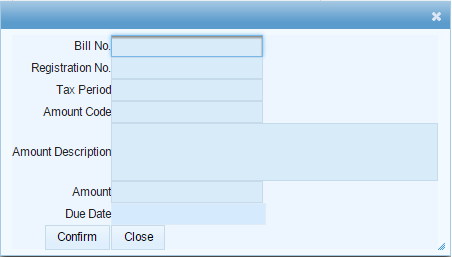
With the totals all looking correct, click Generate Bill. Review the bill details in the confirmation window, click Confirm, and Print if you need a paper copy. Pay the amount through a National Bank of Pakistan or State Bank of Pakistan channel to get your Computerized Payment Receipt (CPR) – the withheld tax has to actually be paid first before you can submit the statement, not just calculated.
Step 7: Submit
With the CPR in-hand, go back to the Data tab and click Submit. If any of the amount withheld in line with your entries has not yet been paid, IRIS will not allow submission until it is – the same goes for the manual documents specifically in respect of tax collected under code 9201. You can Save your draft at any point before then and return to it later to finish.
Common mistakes we see with Withholding Statements
- Submitting prior to payment clearing. IRIS requires the tax to actually be paid (CPR in-hand) before it will accept the final submission – calculating and generating the bill are not enough.
- Retyping large payee lists by hand, rather than using the Excel import. The bulk-import template exists specifically to prevent manual-entry errors on large statements.
- Skipping Validate prior to Calculate. An invalid Registration No. or Code can silently throw off your Tax Chargeable totals if you calculate before fixing flagged entries.
- Mixing up Registration No. and Identification No. Use Identification No. only when the payee genuinely does not have a Registration No. – using the wrong field is a common cause of “Invalid Registration No.” validation failures.
FAQ
Who actually needs to file a 165(1) withholding statement?
Anyone who deducted or collected tax at source on someone else’s behalf – employers on salaries, companies on payments to vendors, and other withholding agents – who is reporting that voluntarily, rather than in response to an FBR notice.
What happens if I made a mistake after submitting?
You’d need to file a revised withholding statement for the same tax period to correct it, using the same Declaration > Withholding/Advance Tax path.
Can I file the statement without paying first?
You can save a draft and calculate the tax chargeable, but IRIS will not accept final submission until the corresponding amount withheld has actually been paid and a CPR generated.
Want an expert to take this for you instead? Our withholding tax service covers preparation and filing of the statement. The statement itself is filed through the official FBR IRIS portal.