
Reporting Business Income in the New IRIS Return
If you are a sole proprietor or AOP running a manufacturing, trading or service business, your business income goes into the Business section of the return. Select it as an income source on the Return Prerequisites screen and the return will generate a number of tabs specific to business income – more involved than salary or property as it includes revenue, expenses, deductions, adjustments and your business balance sheet.
See the Tax Year 2027 (2026-27) business and AOP tax slab rates in our free tax calculator.
For the full walk through from login to submission, see our step by step guide to filing your income tax return online.
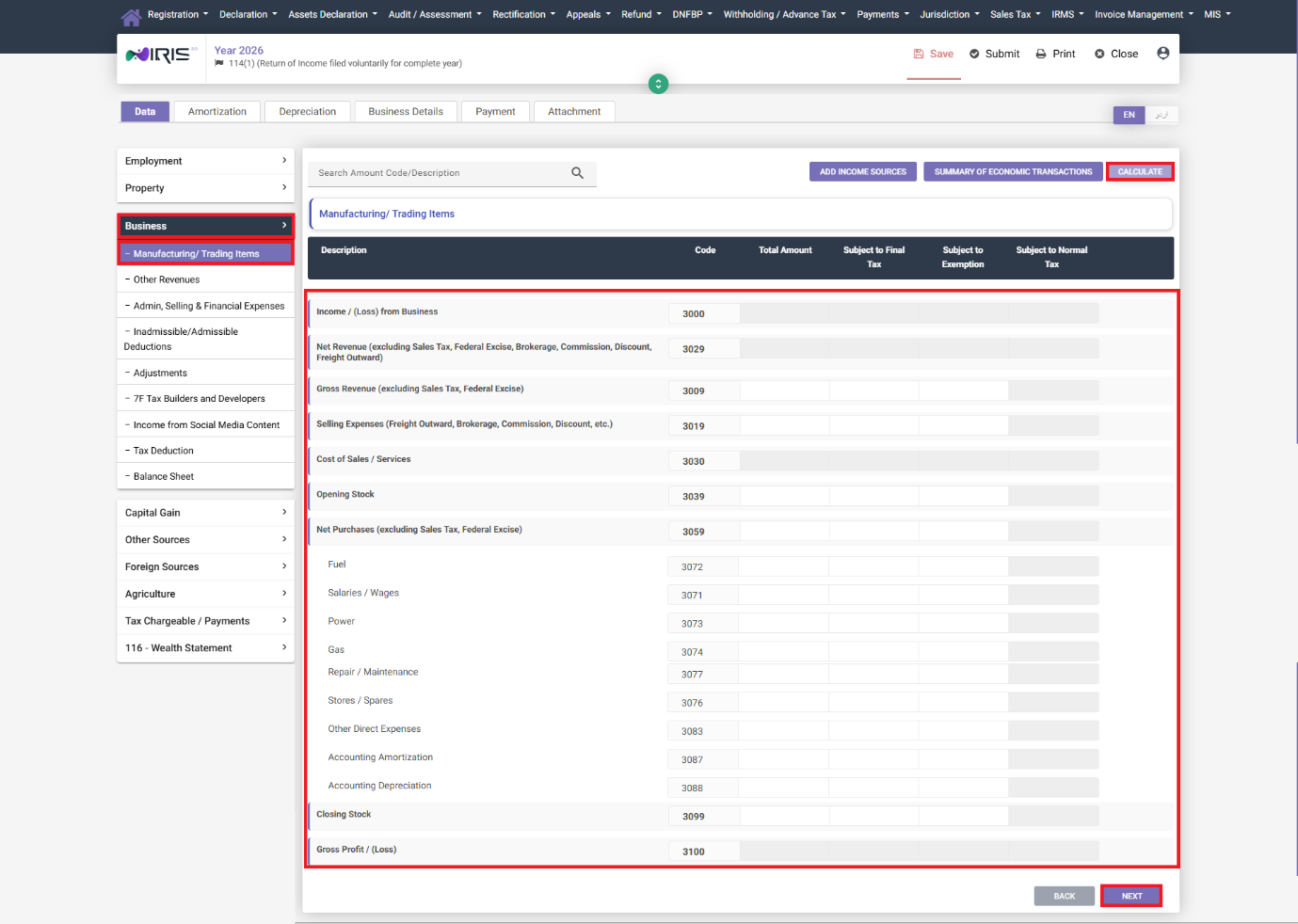
Step 1: Manufacturing/Trading Items
This tab is mandatory if your business type is Manufacturer or Trader. Enter your revenue and cost-of-sales figures in the applicable fields, click Calculate followed by Next.
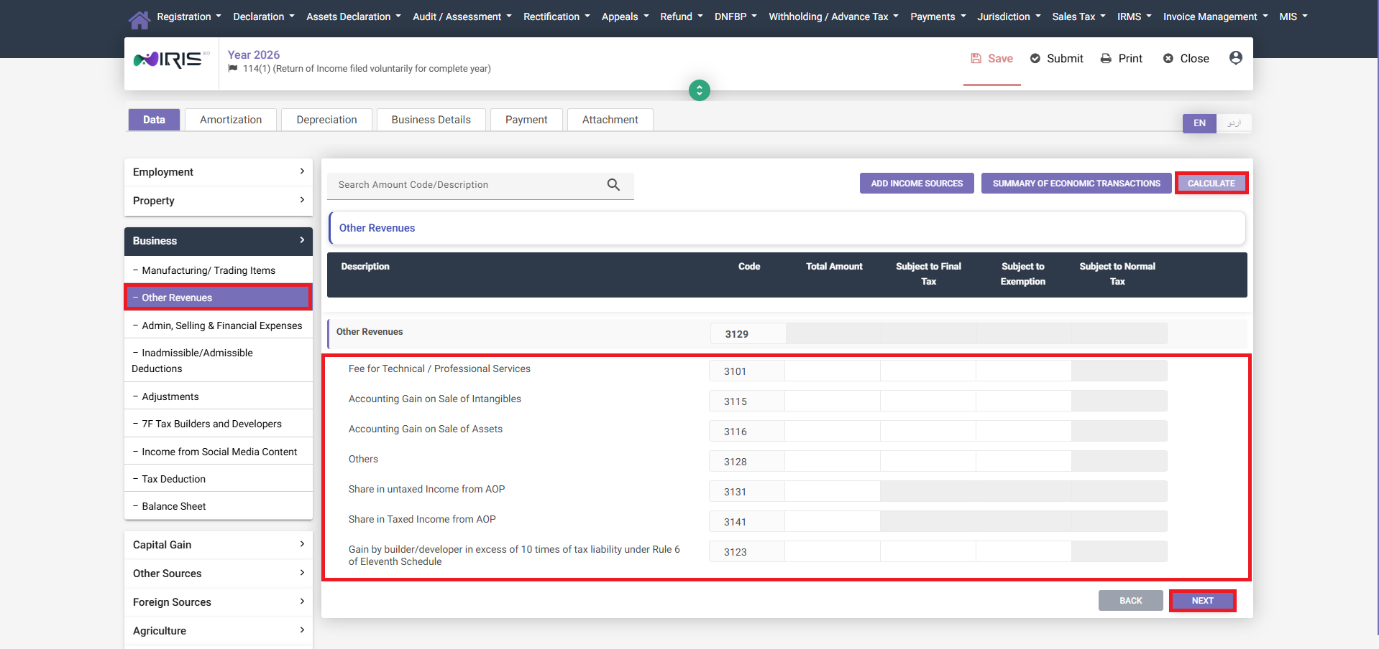
Step 2: Other Revenues
Enter any business revenue that does not fall under Manufacturing/Trading – for example other income streams related to the business. Click Calculate followed by Next.
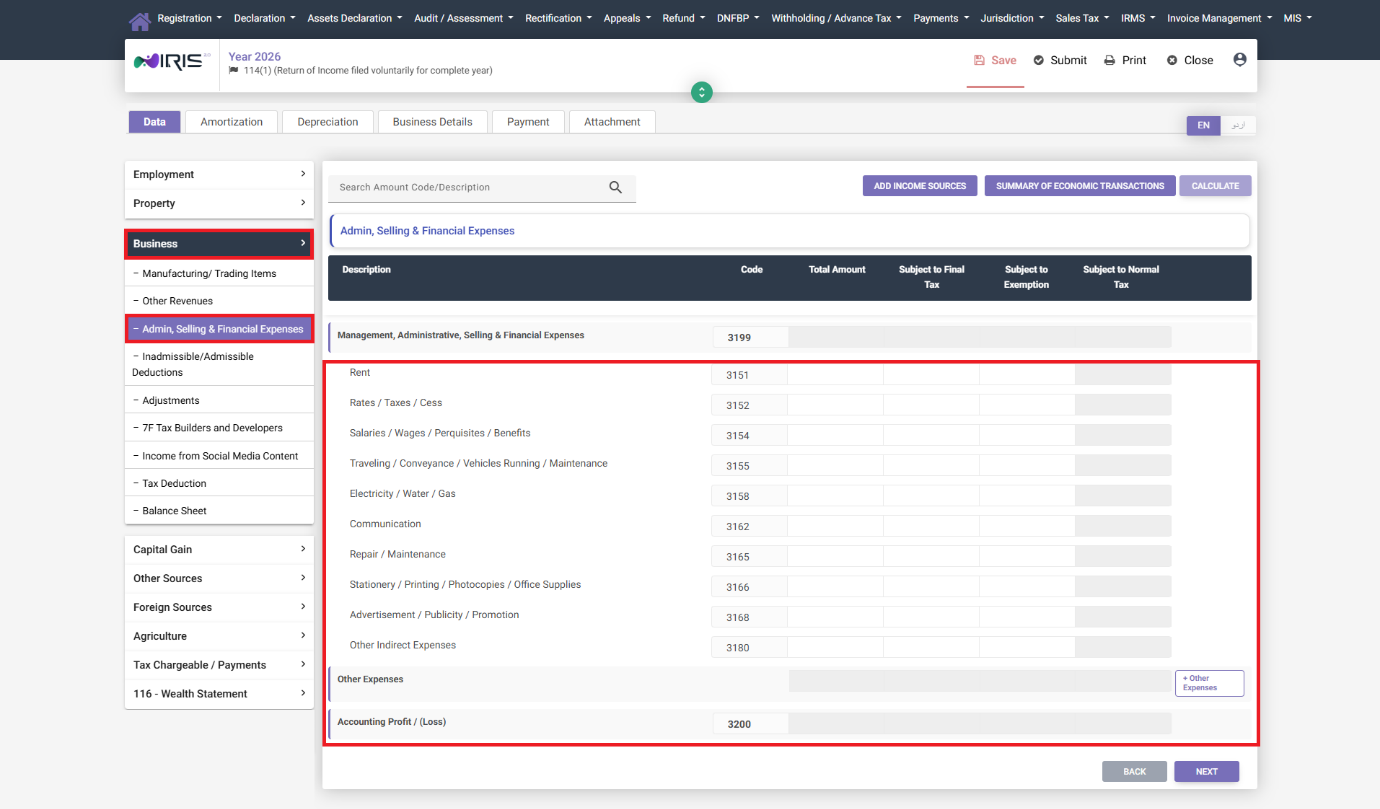
Step 3: Admin, Selling & Financial Expenses
Enter your standard operating expenses directly in the applicable fields. For less common expense types click “+ Other Expenses”, select the applicable expenses(s) from the pop up list, click Calculate followed by Add. You can remove an entry at a later stage by clicking on the delete icon next to it. Click Calculate again following any change and then Next.
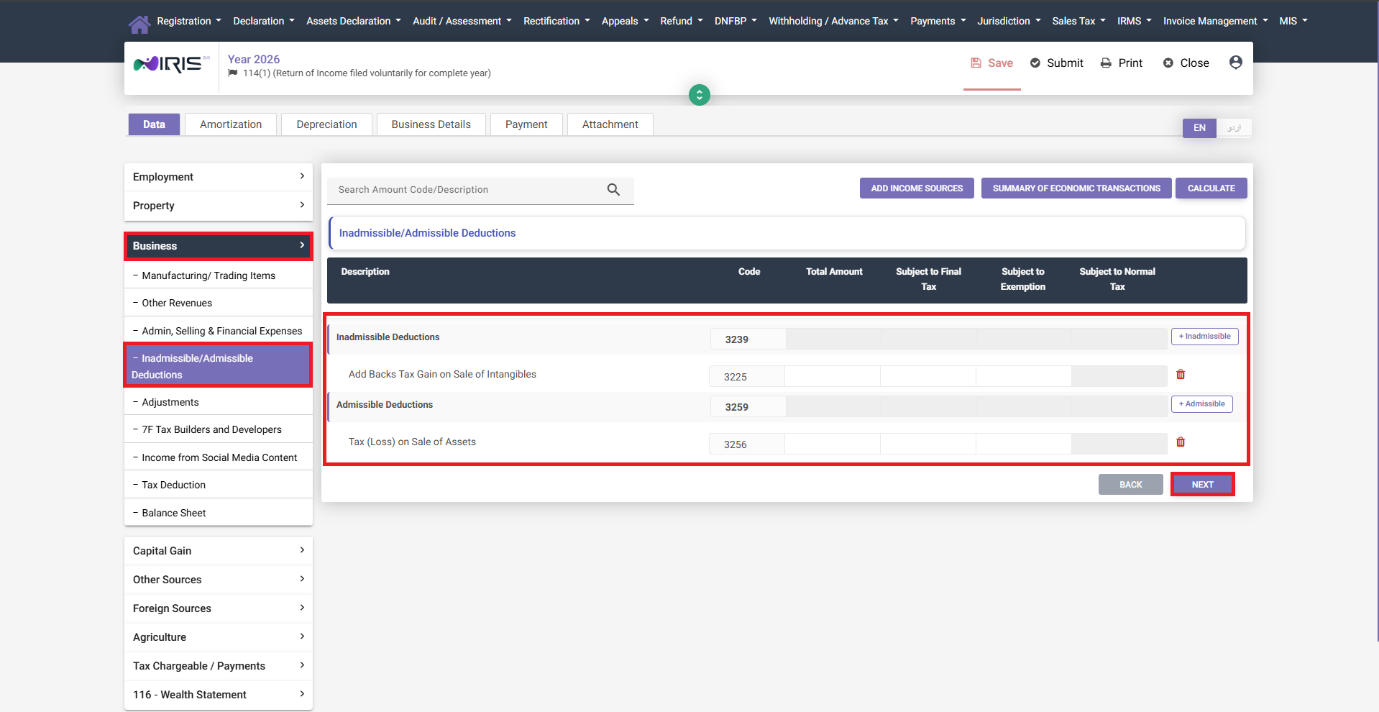
Step 4: Inadmissible and Admissible Deductions
Some expenses need to be added back to your taxable income (inadmissible) and some deductions are allowed separately (admissible):
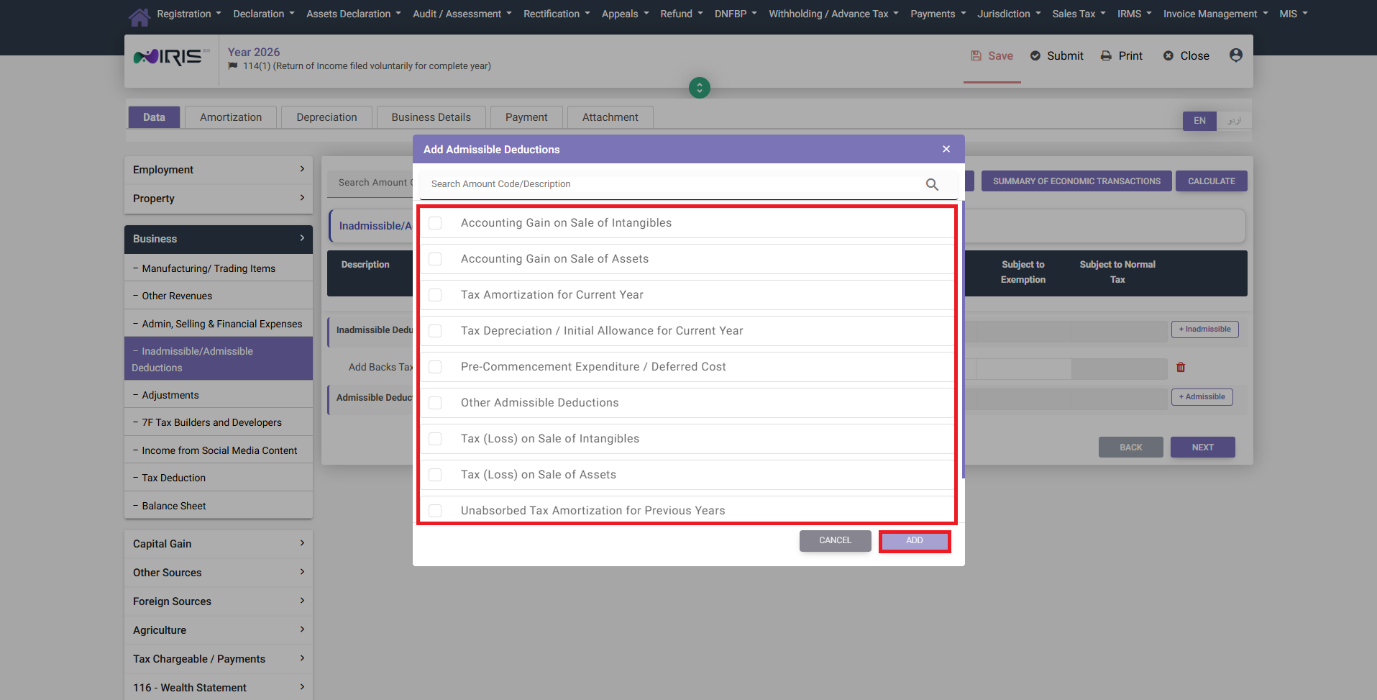
- Click “+ Inadmissible” to select deductions from the list which the tax law does not allow against business income, click Add.
- Click “+ Admissible” to select and add deductions which are specifically allowed.
Enter the required values, click Calculate followed by Next.
Step 5: Adjustments (including 7F for Builders/Developers)
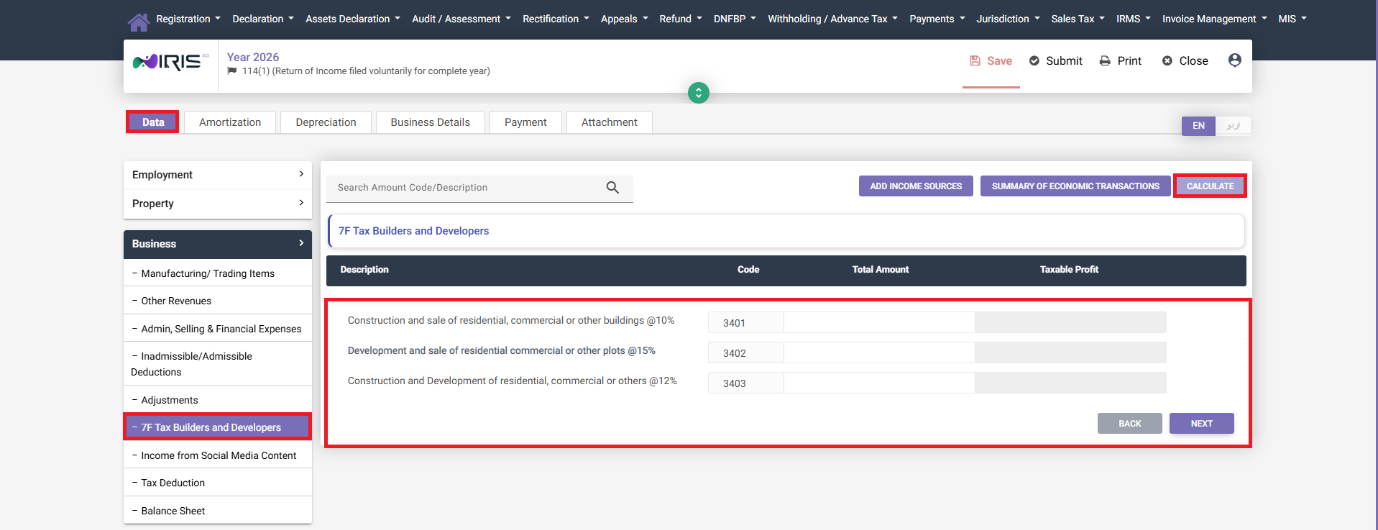
Enter any applicable adjustments, click Calculate followed by Next. If you are a builder or developer then a dedicated 7F sub-section appears here – enter your construction and development details and click Calculate followed by Next.
A Note on Income from Social Media Content
Tax year 2026 introduced a dedicated field for income earned from social media content – relevant if you monetize content on platforms as part of your business activity. Enter your content related income and view details in the applicable fields, click Calculate followed by Next. This is separate from your regular business revenue and should not be merged into the Manufacturing/Trading or Other Revenues tabs.
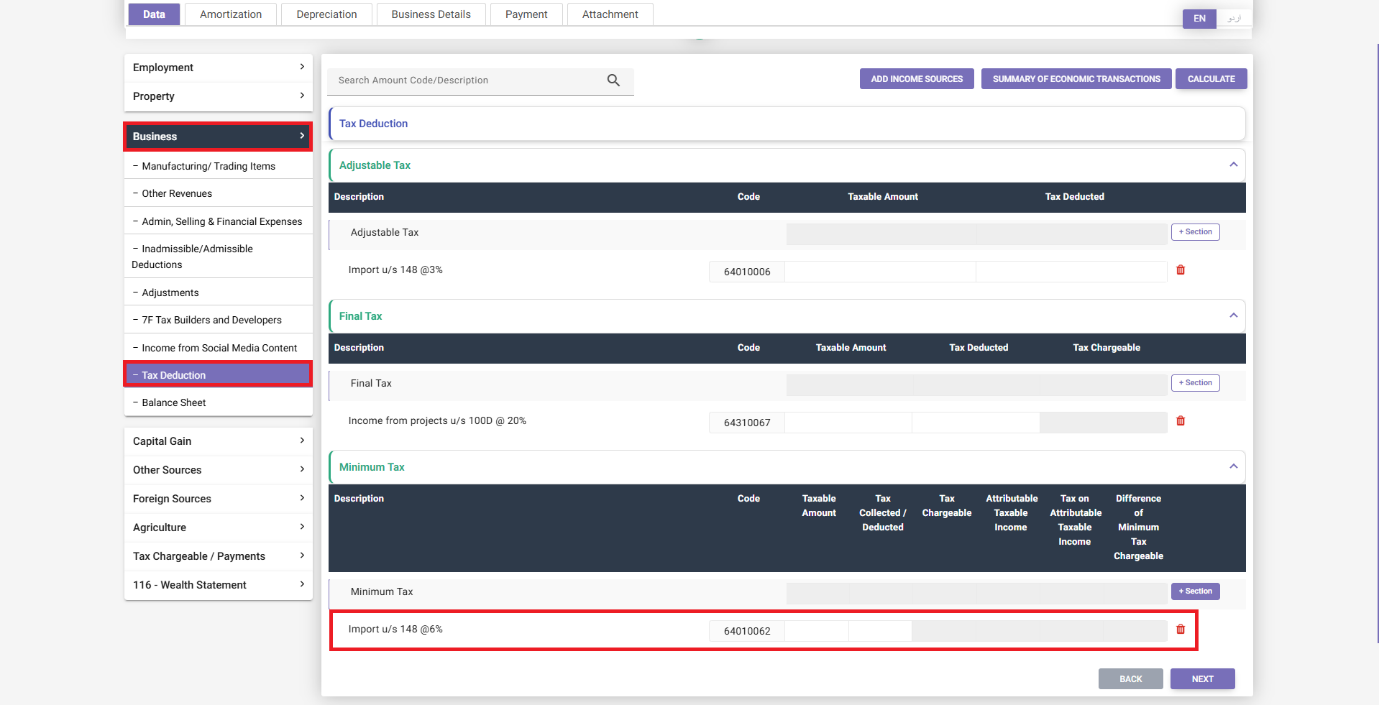
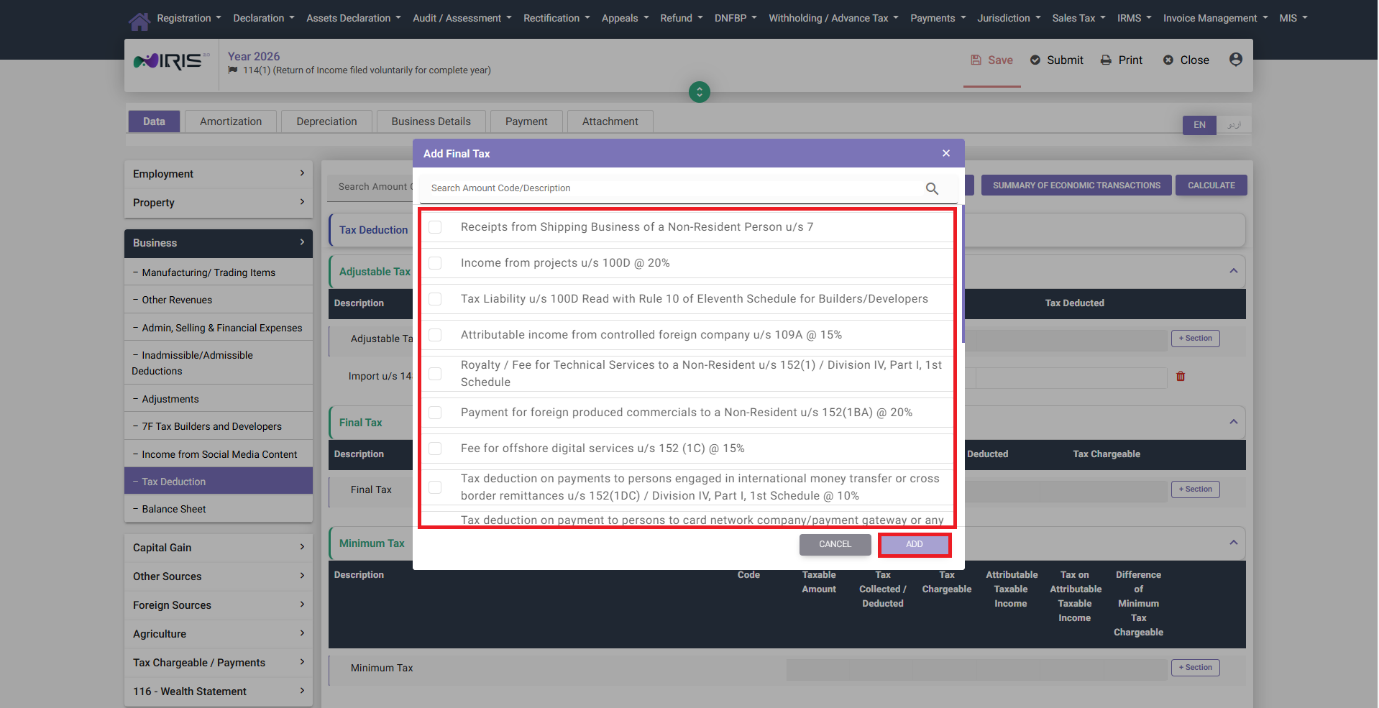
Step 6: Tax Deduction (Adjustable, Final, and Minimum Tax)
This tab consolidates the different types of tax already applicable to your business income:
- Adjustable Tax – click “+ Section”, select the applicable section from the list and click Add.
- Final Tax – click “+ Section” under Final Tax, select the applicable tax and click Add.
- Minimum Tax – click “+ Section”, select the applicable Minimum Tax entry and click Add.
Enter the required values against each entry, click Calculate followed by Next.
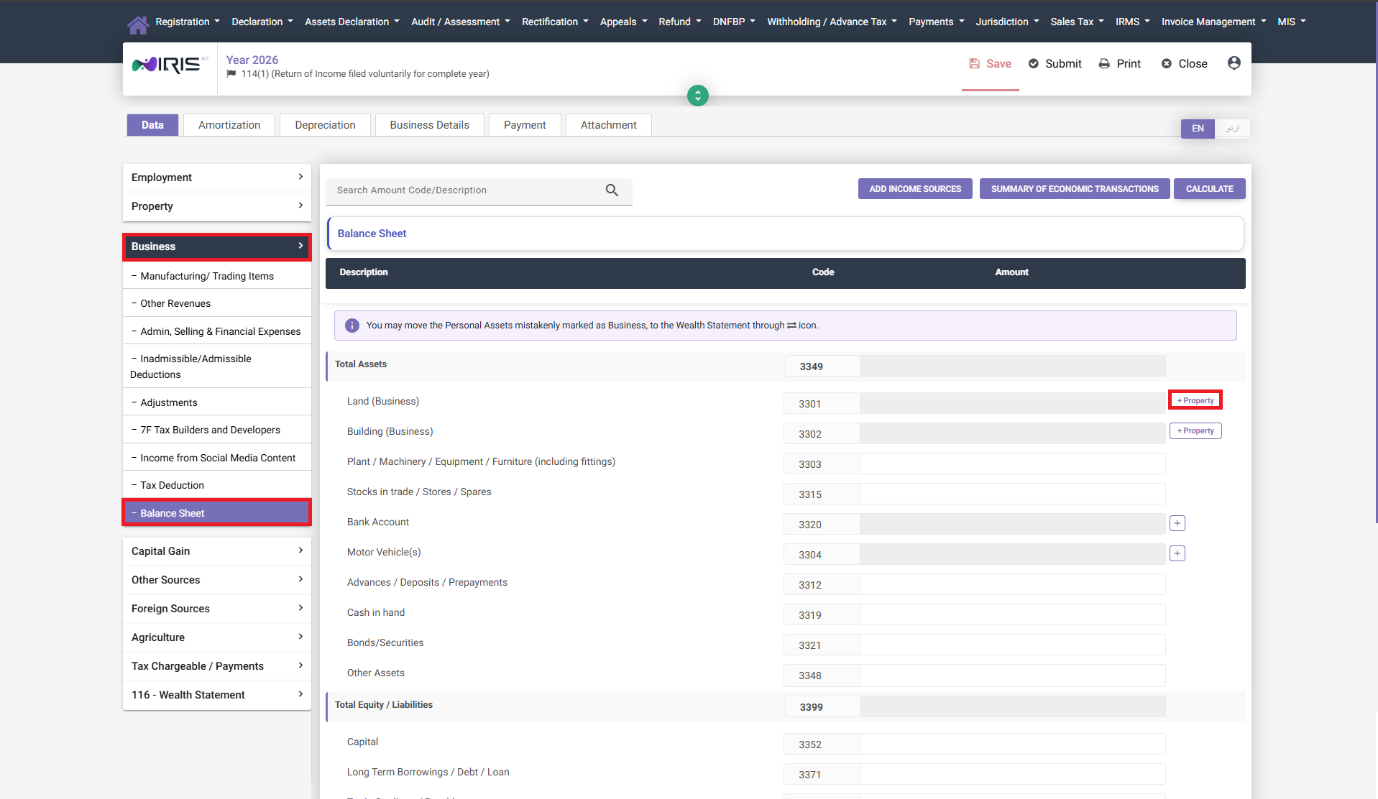
Step 7: Balance Sheet
Business income filers also need to complete a balance sheet:
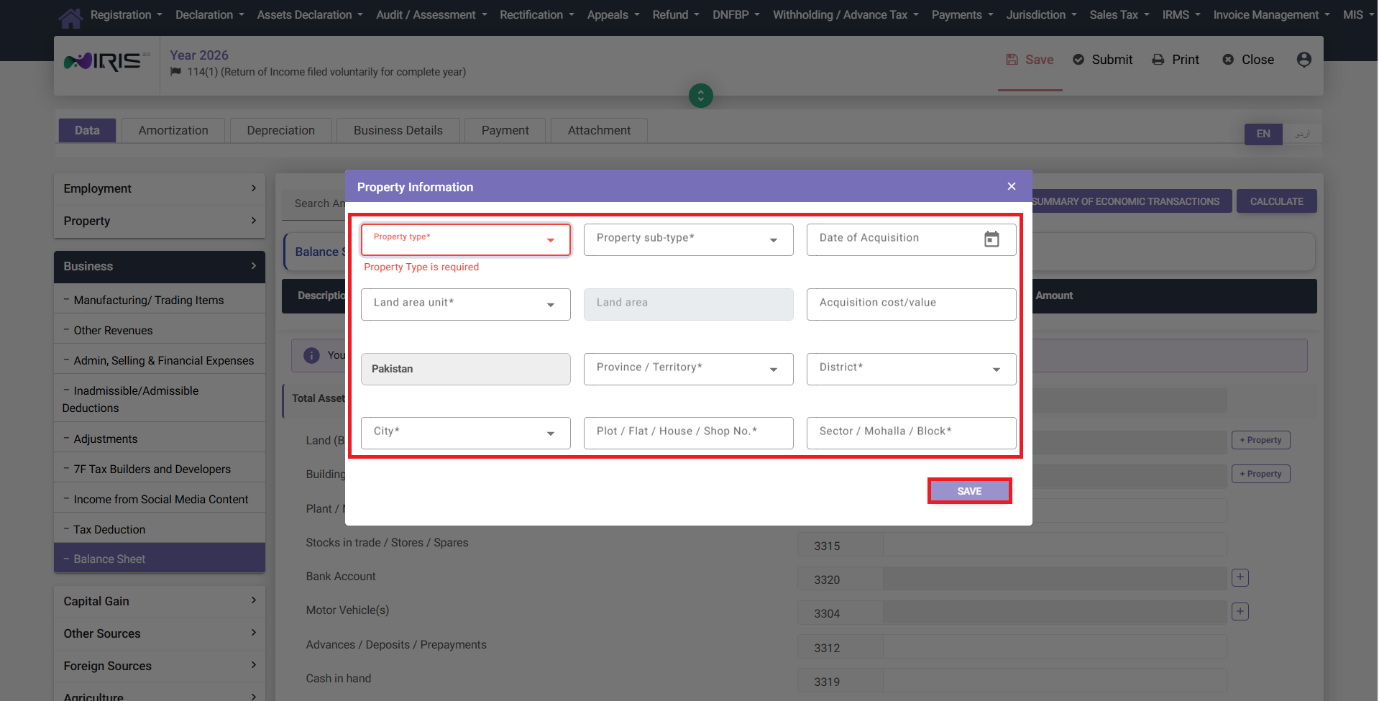
- Property – click “+ Property”, then Add Property in the pop up, enter the details and click Save.
- Bank Accounts – click the “+” icon under Bank Account. For joint accounts, the account title and bank name are auto-fetched; for foreign currency or other accounts enter these manually if they are not auto-populated. Click Add.
- Motor Vehicles – click the “+” icon under Motor Vehicle and enter the relevant details.
Click Calculate to calculate the amounts and click Next.
Step 8: Amortization and Depreciation
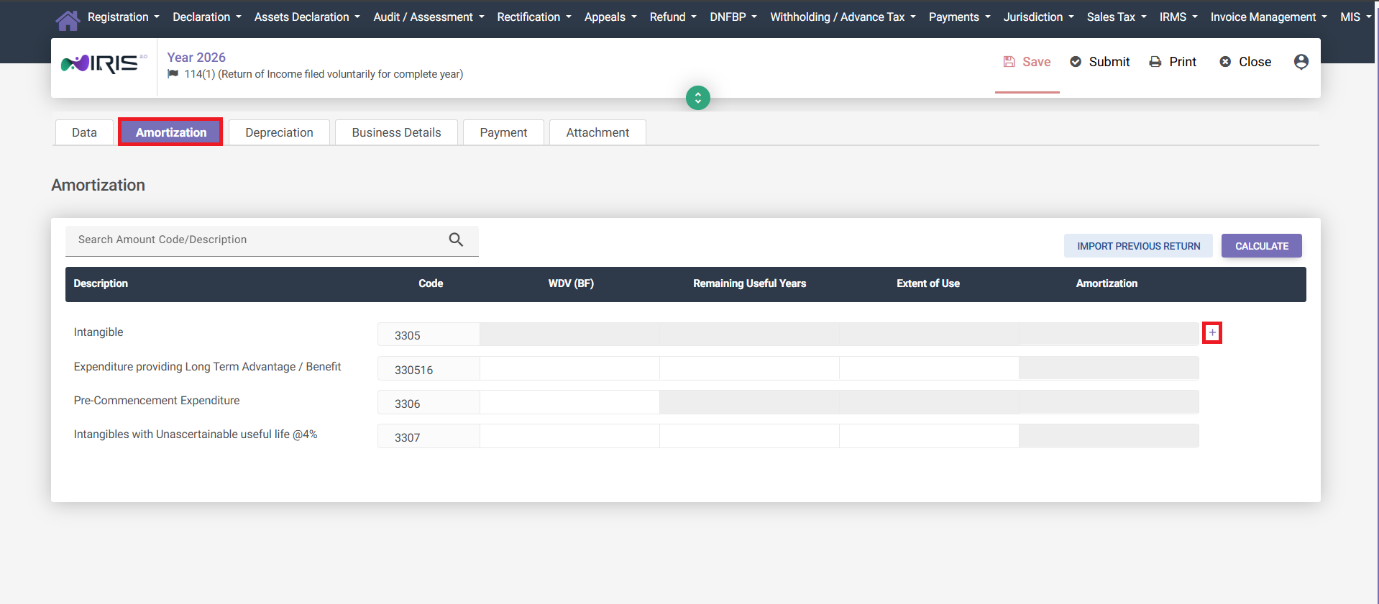
These two tabs only appear for business income:
- Amortization – for intangible assets. Click the “+” icon under Intangible Assets, enter the amortization details and click Calculate.
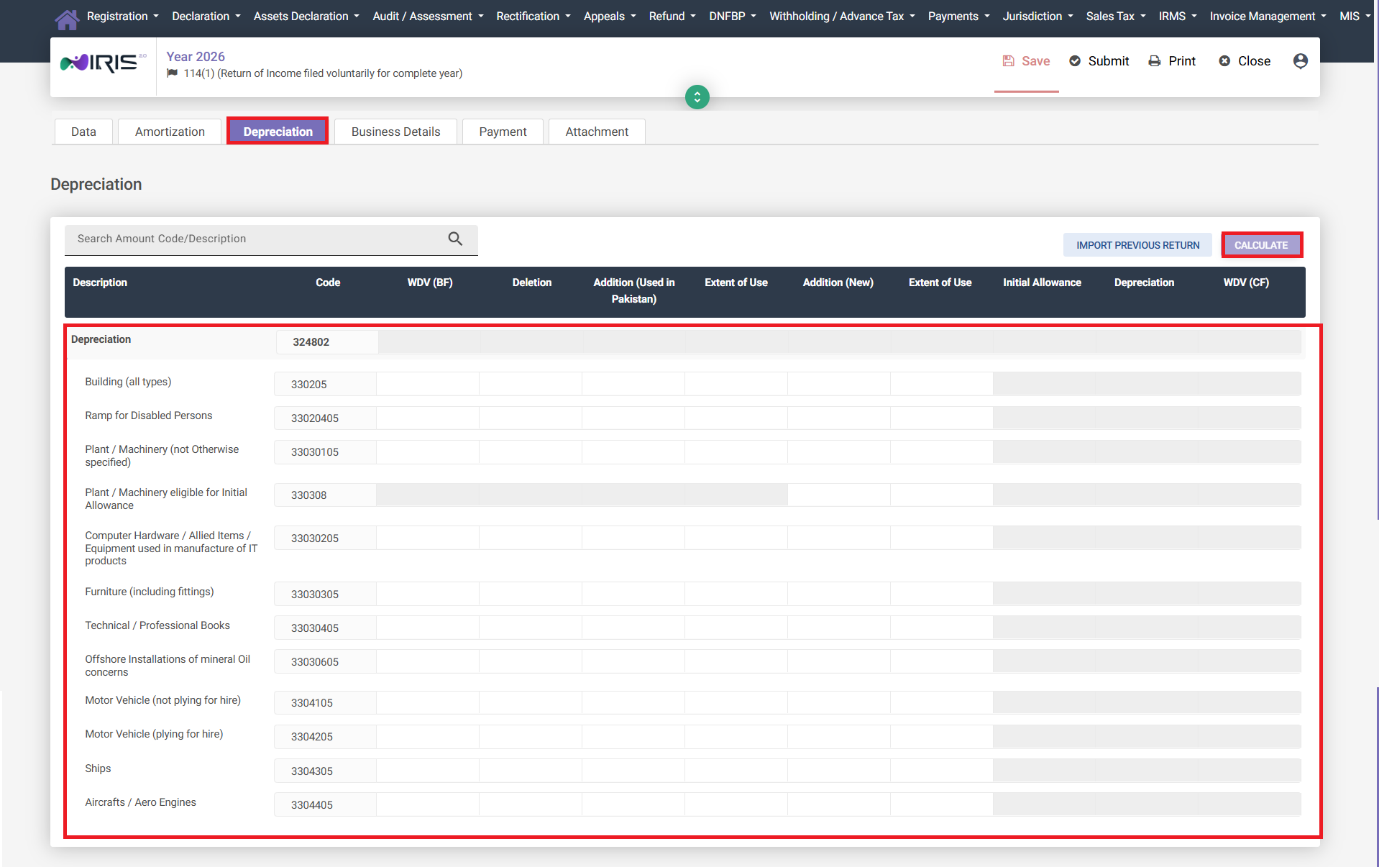
- Depreciation – for depreciable assets. Enter the applicable depreciation values directly in the required fields and click Calculate.
Step 9: Business Detail
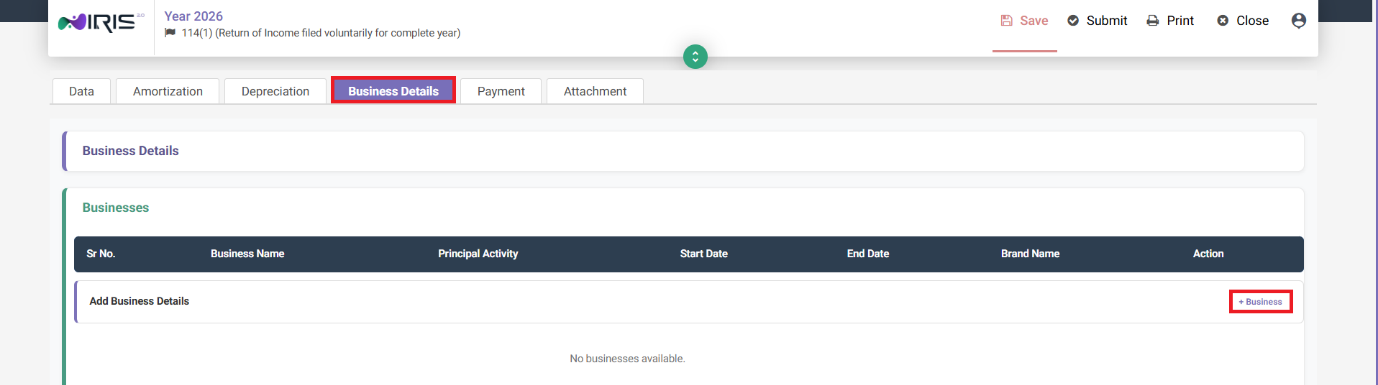
Finally, add your business’s own information under Business Detail by clicking “+ Business” and filling in the required fields.
Common Mistakes We See With Business Income
- Mixing inadmissible and admissible deductions. These are tracked in two separate lists for a reason – putting a disallowed expense into the admissible list will underestimate your taxable income and can result in a notice.
- Merging social media content income into regular business revenue. Since tax year 2026 this has its own field and needs to be reported here separately.
- Skipping the Balance Sheet tab because it feels optional – it isn’t for business income filers and an incomplete Balance Sheet will cause reconciliation issues in your Wealth Statement later.
- Forgetting to add all three tax types (Adjustable, Final, Minimum) in the Tax Deduction tab when more than one applies to your business.
FAQ
Do I need to fill in every tab in the Business section?
Only the ones relevant to your business. Manufacturing/Trading Items is mandatory for manufacturers and traders; Amortization and Depreciation only apply if you have the relevant assets.
What’s the difference between Adjustable Tax and Final Tax?
Adjustable Tax is tax already withheld which gets credited against your final liability. Final Tax is tax that fully discharges your liability on that specific income – it isn’t adjusted further. Both need separate entries if they apply to you.
Where do I report income from monetized social media content?
In its own dedicated field under the Business section, introduced for tax year 2026 – not under Manufacturing/Trading or Other Revenues.