
Once logged in to IRIS, the dashboard may seem intimidating with the mega menu, tiles, and tabs for different tasks. This guide gives you an overview of each so that you know where to go when looking to complete a task.
Not yet logged in? See our step-by-step IRIS login guide. Looking to file a return? See our step-by-step guide to filing your income tax return online.
The Mega Menu
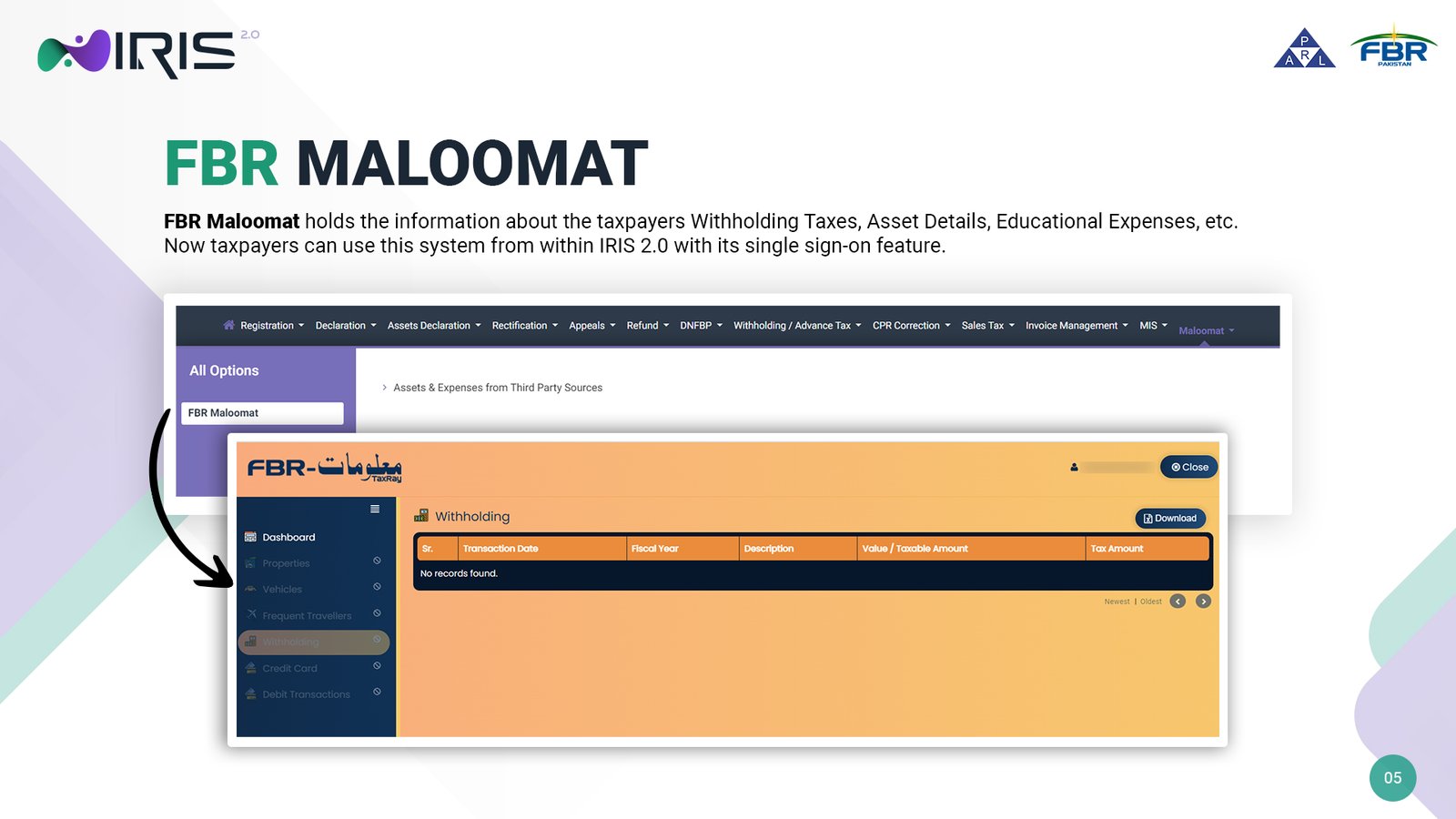
The horizontal bar at the very top – Registration, Declaration, Assets Declaration, Rectification, Appeals, Refund, DNFBP, Withholding/Advance Tax, CPR Correction, Sales Tax, Invoice Management, MIS, and Maloomat – is the mega menu. Clicking on any item opens a sub-menu, which takes you to the relevant page, organized by category (for example, Declaration breaks down into Returns & Statements, Extension Applications, and Revision Applications).
Quick Help Tiles
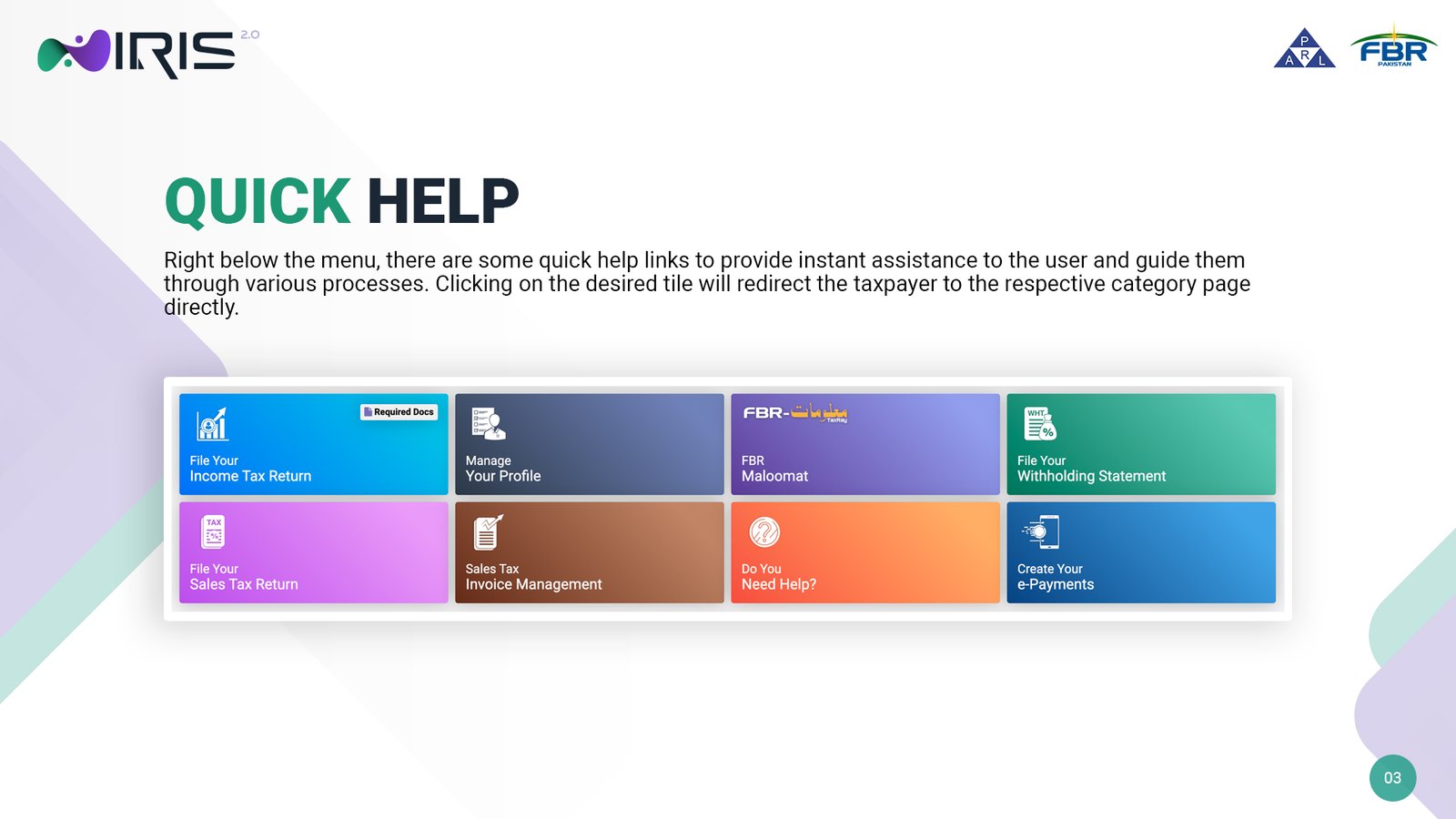
Below the menu, eight tiles gives you one-click access to the most common actions: File Your Income Tax Return, Manage Your Profile, FBR Maloomat, File Your Withholding Statement, File Your Sales Tax Return, Sales Tax Invoice Management, Do You Need Help, and Create Your e-Payments. Clicking on any of the tiles will take you to the corresponding category page.
FBR Maloomat
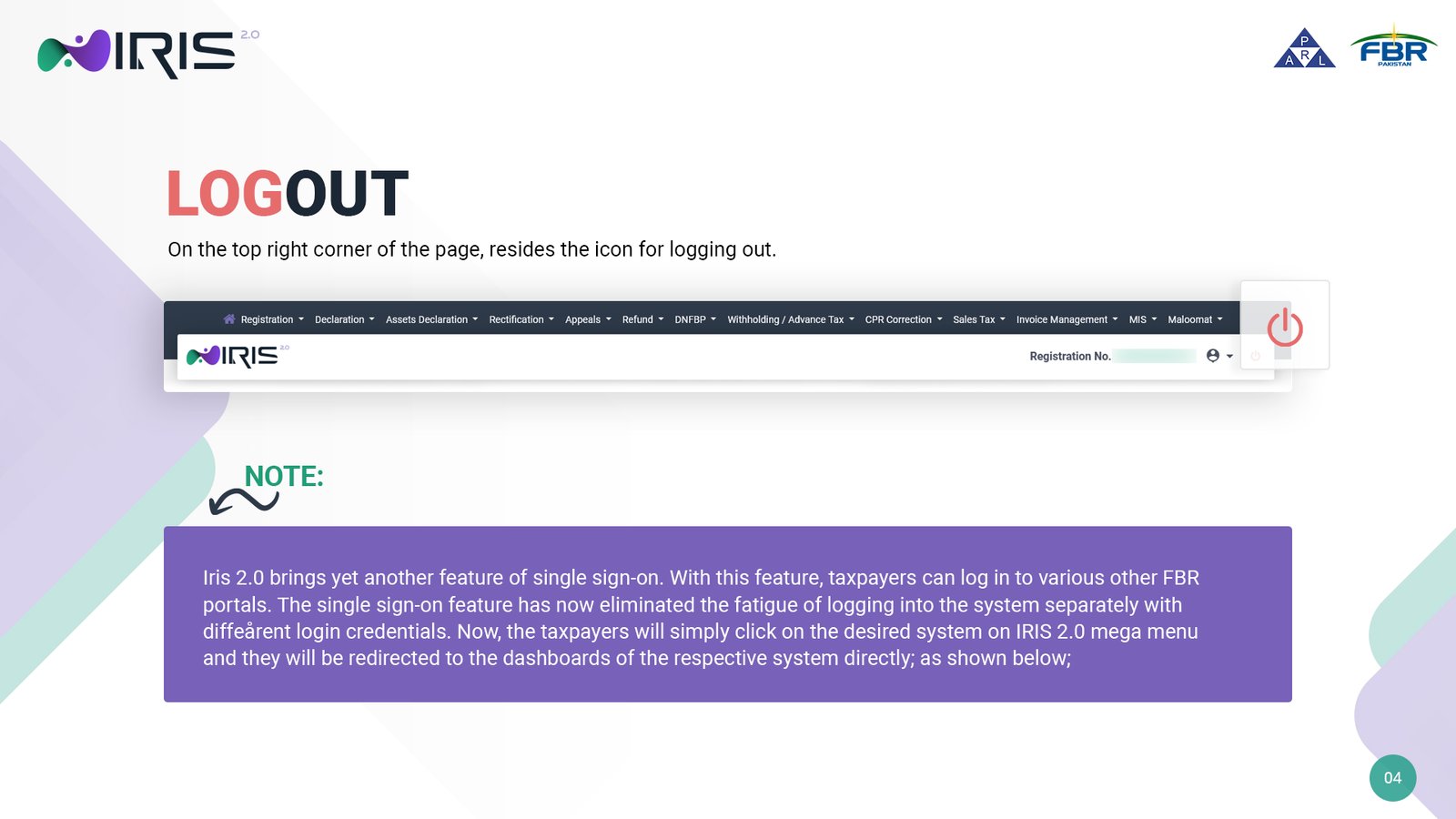
FBR Maloomat holds third-party information on you – withholding taxes, asset details, educational expenses, and similar records that have been reported to FBR by banks, universities, and other institutions. With IRIS 2.0’s single sign-on, you can now open Maloomat directly from within IRIS rather than log into it.
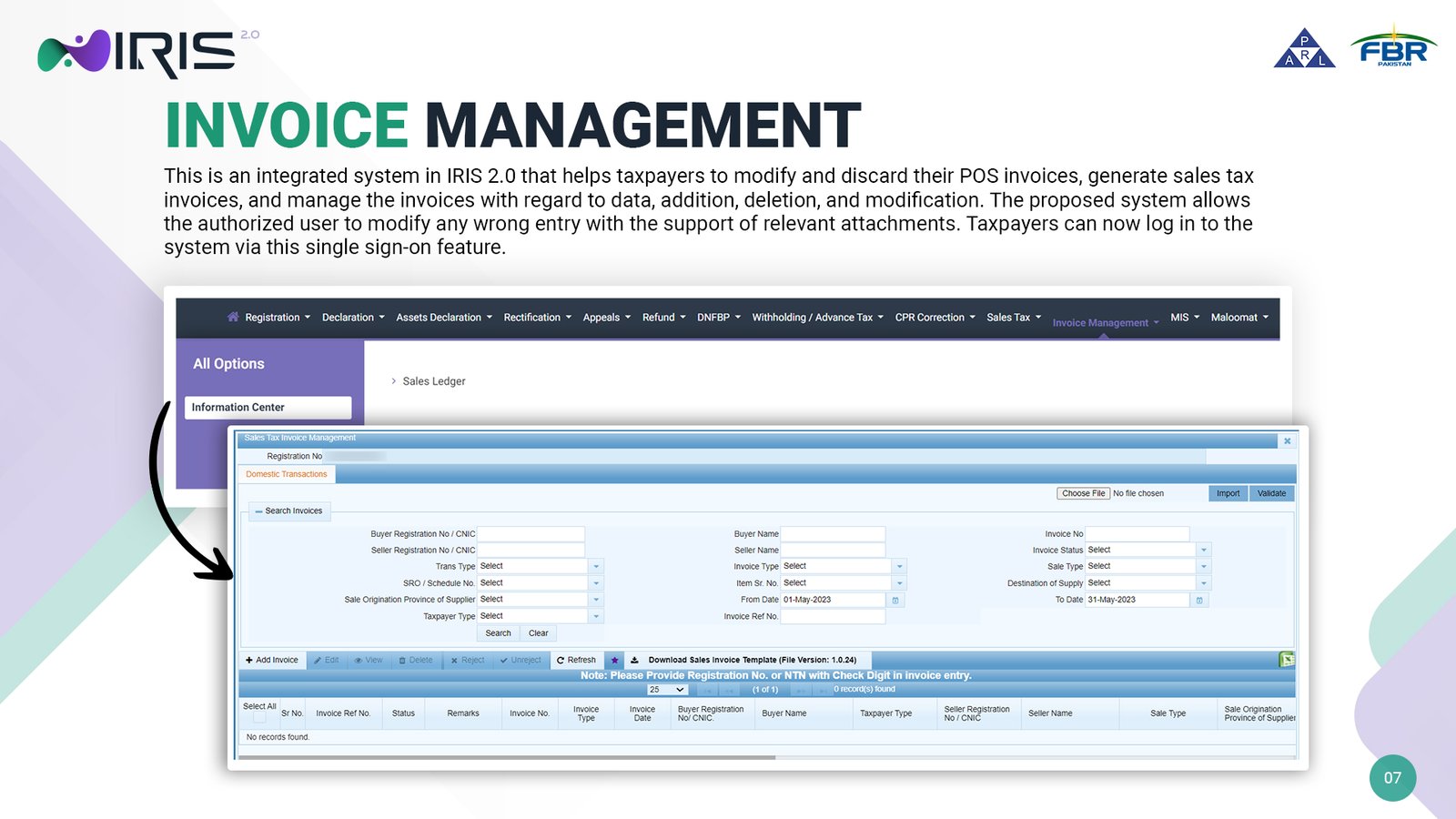
Invoice Management
This is where you alter or discard POS invoices, generate sales tax invoices, and manage invoice data – additions, deletions, and corrections to wrongly entered entries along with supporting attachments. It is accessed from the mega menu’s Invoice Management option or the Sales Tax Invoice Management tile.
MIS Screen
MIS (Management Information System) is a directory which lets you monitor real-time tax collection received under various withholding tax sections along with Foreign Assets, FCY Domestic, Domestic Assets, E-Hearing, Demand Register, Payment Details, Pending AOP Verification, and Action Plan Execution records.
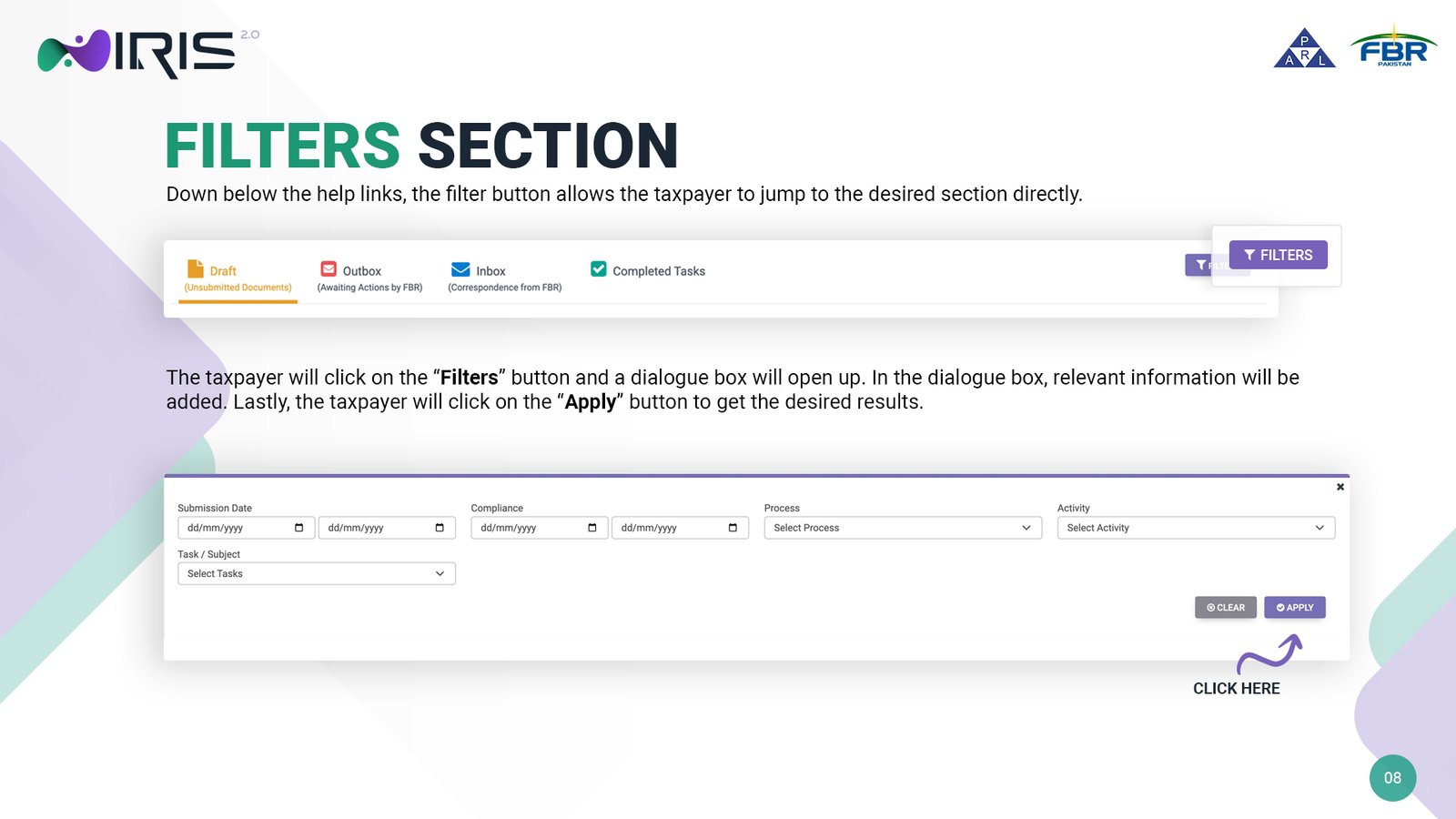
The Task Tabs: Draft, Outbox, Inbox, Completed Tasks
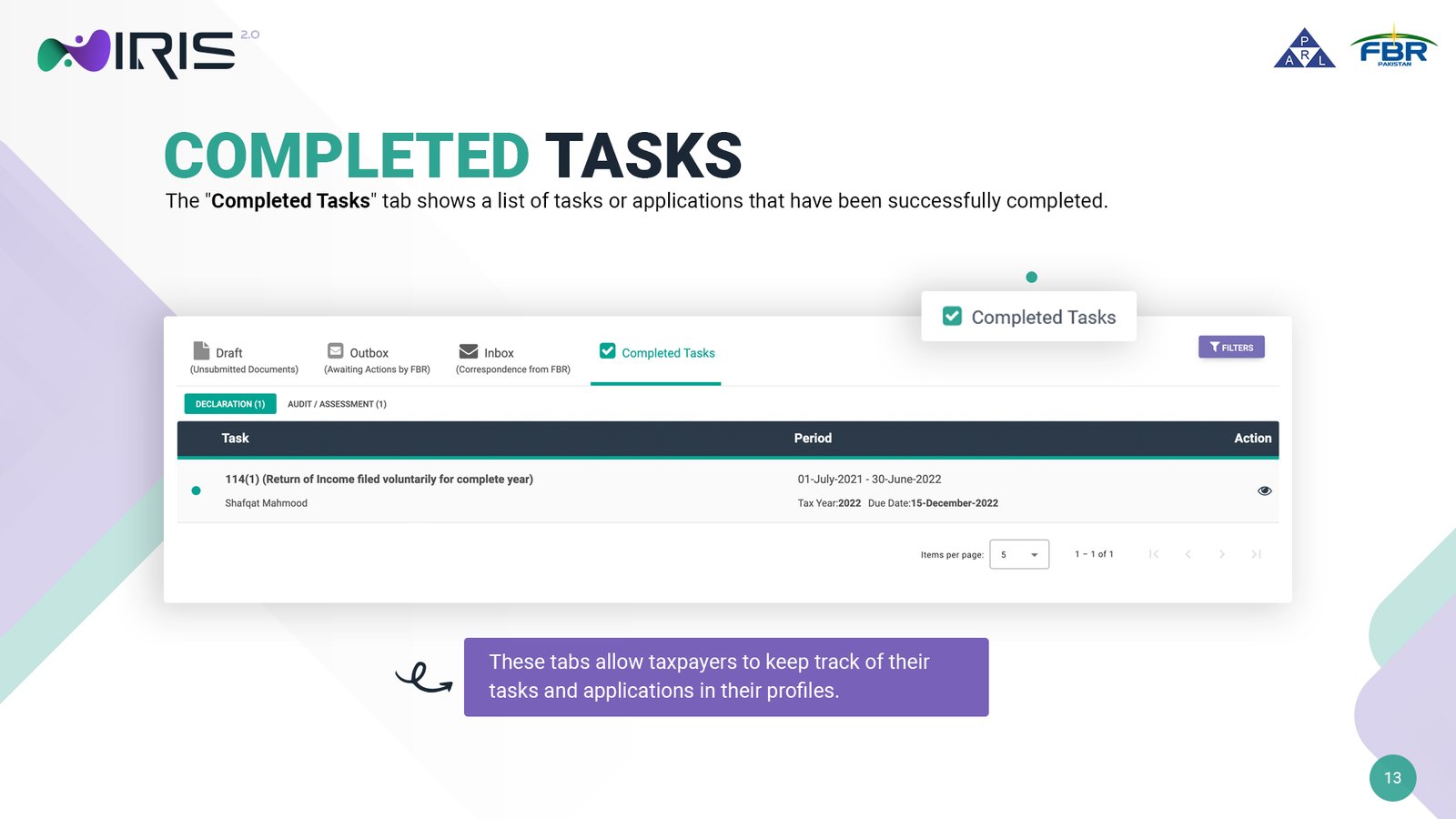
Four tabs keep track of the status of everything you’ve done in your profile:
- Draft – tasks or applications saved but not yet submitted, grouped by category (Registration, Declaration, IT Declaration, and so on)
- Outbox – items which you’ve submitted, which are awaiting action by FBR
- Inbox – correspondence from the relevant FBR approval authority, which now warrants your response, including the full history since your profile began, not just recent items
- Completed Tasks – everything that has been fully processed
Common Questions We Get About the Dashboard
- “Where did my draft go?” Check the Draft tab under the correct category – drafts are grouped by task type (Registration, Declaration, CPR Correction, and so on), so it’s easy to look in the wrong bucket.
- “Why can’t I find an old notice?” The Inbox tab keeps your full correspondence history, not just recent items – scroll or filter rather than assume it’s gone.
- “Do I need to log into Maloomat separately?” No – IRIS 2.0’s single sign-on lets you open it directly from the mega menu or the FBR Maloomat tile.
FAQ
What’s the difference between the mega menu and the Quick Help tiles?
The mega menu at the top gives you access to every module in IRIS, organized by category. The Quick Help tiles below it are shortcuts to the few tasks most taxpayers need to do most often – filing a return, managing your profile, or making a payment.
Can I use IRIS 2.0’s single sign-on for Sales Tax and Maloomat both?
Yes. Once logged in to IRIS, clicking on the relevant option in the mega menu will take you directly into that system’s dashboard without a separate login.
Where do I check if FBR has responded to something I submitted?
Check the Inbox tab – that’s where correspondence from the FBR approval authority appears once they’ve acted on something you submitted.
If navigating IRIS still seems overwhelming, our income tax return filing service takes care of the entire process for you, from start to finish on the official FBR IRIS portal.